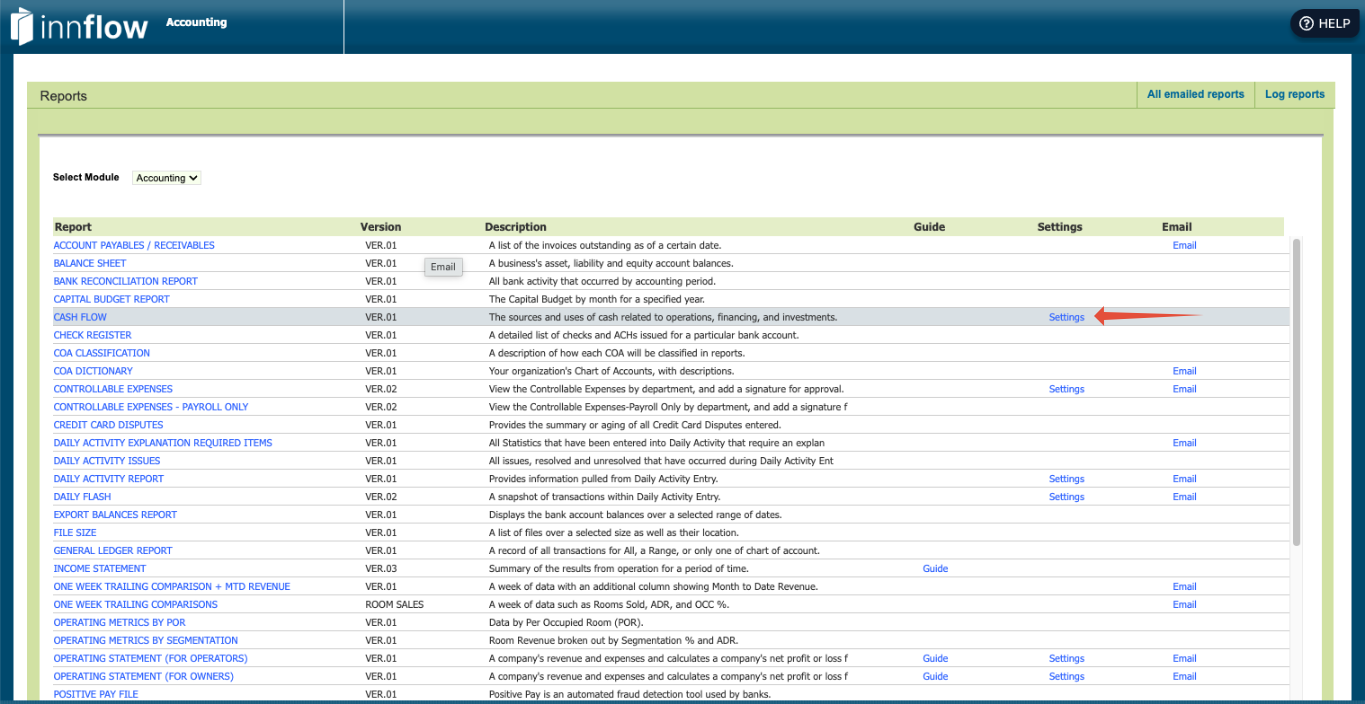
Navigate to Accounting > Reports. In the row for Cash Flow, click the Settings on the right side.
Click the “Add Row” button on the top right.
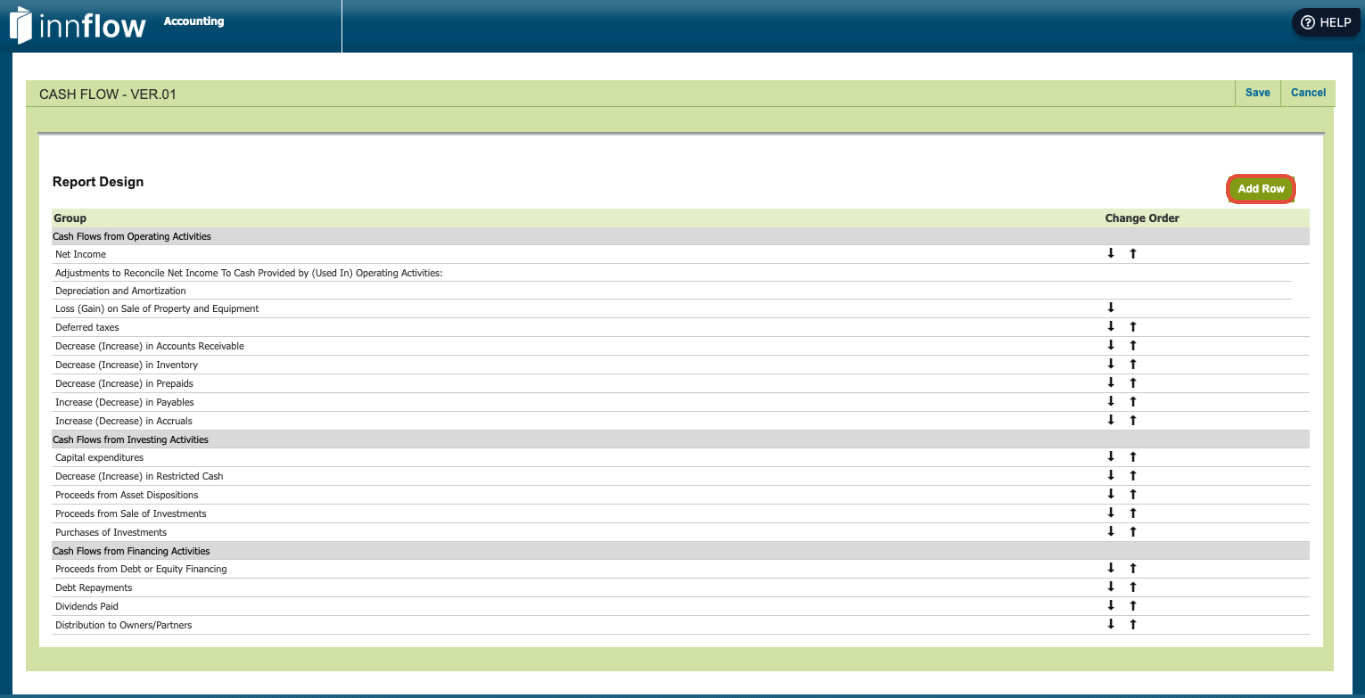
Once added, you can use the up and down arrows on the right to change the order.
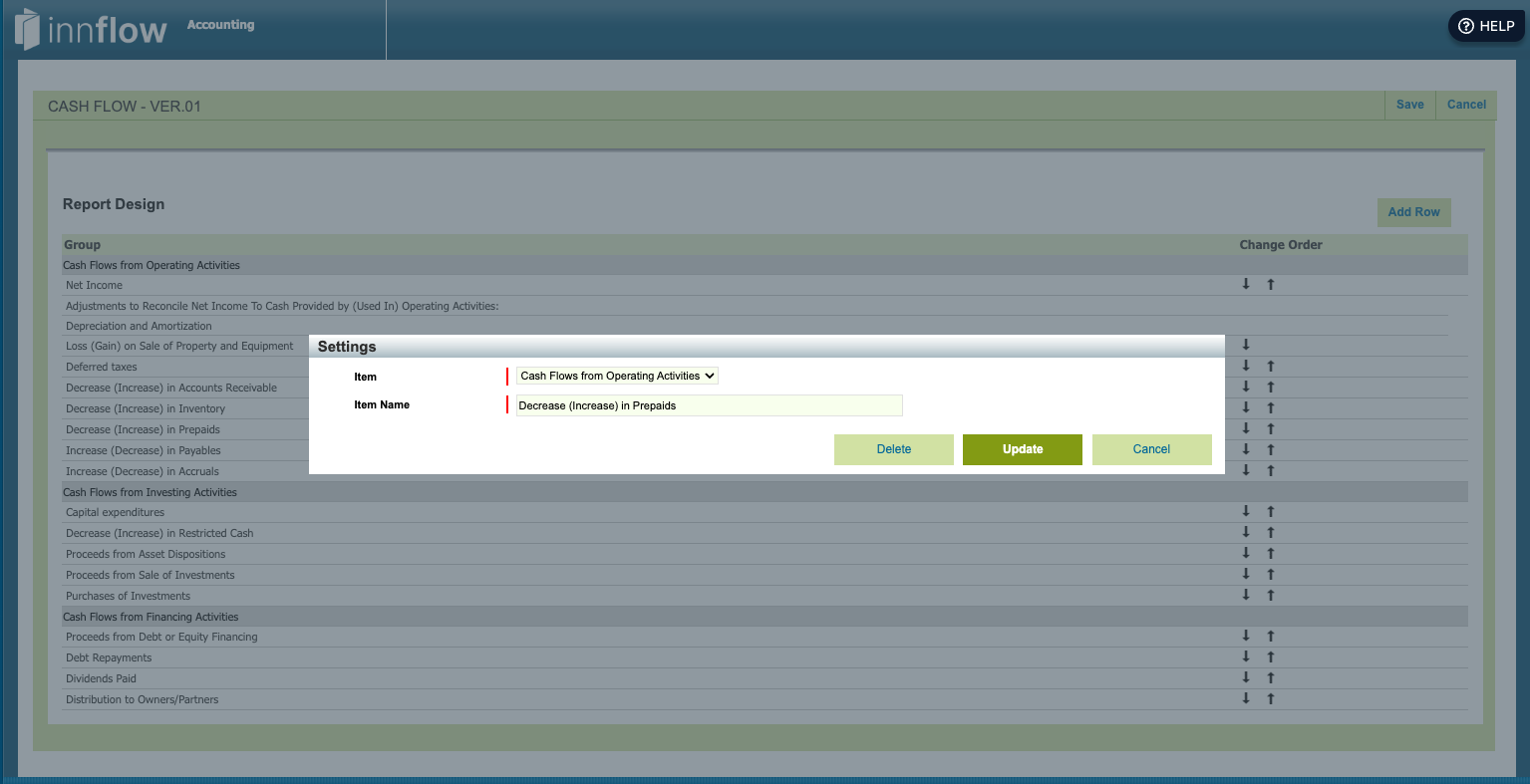
You can also click on a row to change the name, Delete or Update
Pro Tip: Have another tab open for running this report to see how your changes are immediately reflected in the report to ensure settings and format are accurate.
Was this article helpful?
That’s Great!
Thank you for your feedback
Sorry! We couldn't be helpful
Thank you for your feedback
Feedback sent
We appreciate your effort and will try to fix the article