See below for more details into the enhancements released:
TABLE OF CONTENTS
- Labor Management Reports - Labor Summary T1W and T2W
- Labor Management - Contractor Report: Date Ranges, Week Ending and HH:MM Hours
- Labor Management: Time Review
- Accounting - Daily Activity 2.0 Document Viewer Updates
Labor Management Reports - Labor Summary T1W and T2W
Piece-Rate Pay, Rooms Credited and Makeup Wages
At a property running piece rate, room attendants earn independently of the hours they clock, and minimum wage makeup adds cost with no hours behind it. Piece earnings, rooms credited, pay per room and minimum wage makeup already appeared on other Labor Summary reports, but not on the one-week (T1W) and two-week (T2W) reports — so on T1W and T2W, Housekeeping dollars never tied back to Housekeeping hours and nothing on the report explained the gap. Both reports now break Housekeeping cost out in full.
- The Housekeeping block shows piece earnings and hourly earnings separately, with the existing Actual ($) row relabeled Actual ($) - Total so you can see the two add up alongside makeup wages. Hourly staff such as inspectors and housepersons land in the hourly line, never the piece line.
- Rooms Credited and Pay Per Room - actual, budget and variance - sit in the same block, so you can see what a room is actually costing you against what you budgeted, using the report's existing over-budget colors.
- Makeup Wages covers minimum wage makeup, non-productive time, and rest and recovery pay.
- Makeup wages are calculated by workweek, so the report shows them only for workweeks that fall entirely inside the dates you selected, as a period total rather than day by day. The legend names the workweeks it counted, or tells you none fell fully inside the period. On T1W that means makeup wages appear only when your end date lands on the last day of a workweek.
- Nothing changes for properties that don't run piece rate: departments other than Housekeeping are untouched, the original six rows behave exactly as they do today, and the new rows read 0.00 where there's no piece-rate activity. How piece-rate and makeup pay are calculated has not changed — this is a reporting change only.
Labor Management - Contractor Report: Date Ranges, Week Ending and HH:MM Hours
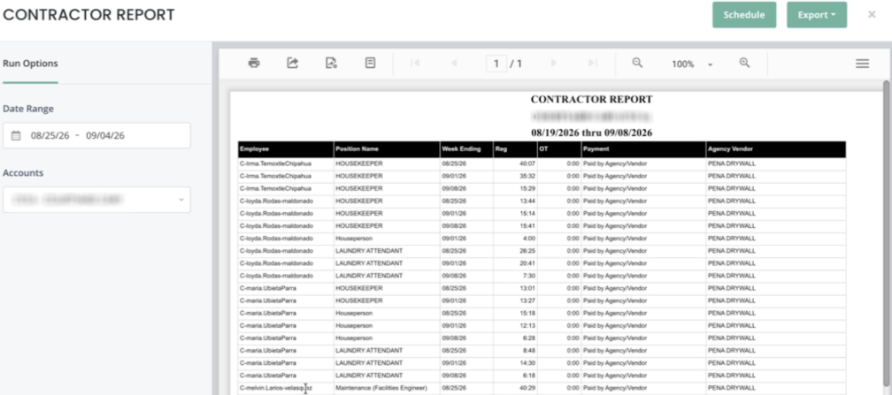
The report used to take a single date and snap to whichever pay period contained it. On a pay period that spanned two weeks, each employee came back looking duplicated, with nothing on the row to say which week the hours belonged to. Three changes fix that.
- Pick a start and end date instead of a single date, and the report returns the contractor records in that range rather than the pay period it happens to land in.
- A Week Ending column on every row tells you which week those hours belong to, so a two-week pay period reads as two clearly labeled weeks instead of repeated rows.
- Hours display as HH:MM — 1:30 rather than 1.5 — matching the Punch History report, so the two reconcile without converting between formats.
- Exported hours are HH:MM as well. If you feed this export into a spreadsheet that expects decimal hours, update those formulas before your next pull.
Labor Management - Time Review
Edited Smile ID Punches Now Have Their Own Indicator
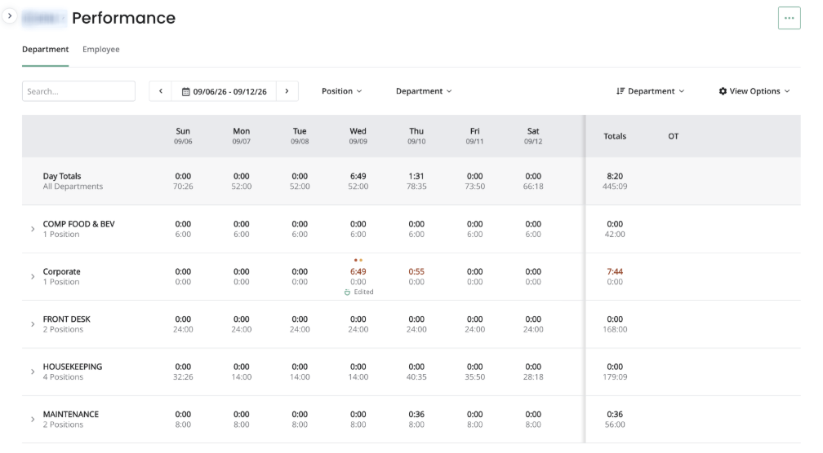
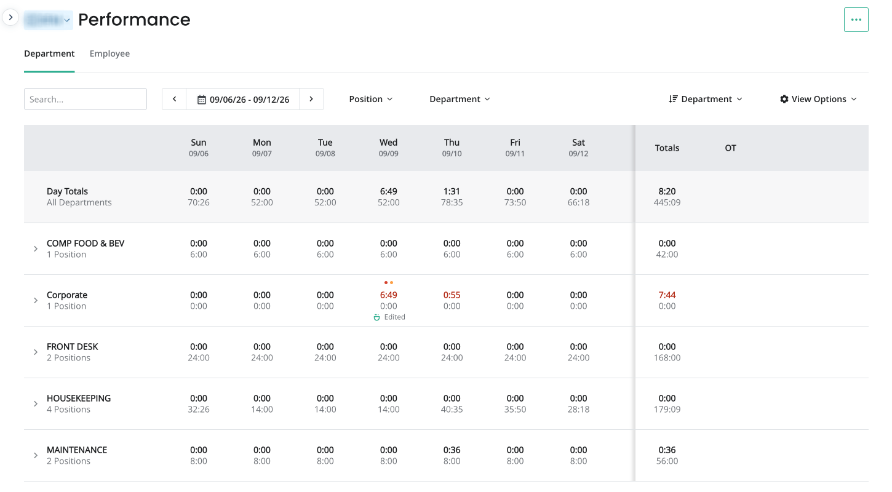
The Labor Performance tab already marks punches as Auto or Manual, but a Smile ID punch that someone edited after capture looked the same as one nobody touched. A third indicator now marks those punches.
- Any Smile ID punch edited after capture carries a distinct indicator, added to the legend with its own label, so you can spot overridden facial-recognition punches while reviewing time rather than by opening each punch.
- The indicator means edited, not Smile ID: an untouched Smile ID punch keeps its current treatment, and a punch entered manually from the start keeps its Manual treatment.
- Any edit after capture counts, not just a time change — a change to department, position or note marks the punch too.
- Hover, focus or open the punch and you'll see that it was an edited Smile ID capture — and, where the punch already records it, who made the edit and when.
- The indicator is distinguishable by more than color, so it holds up across the dense Performance grid.
Accounting - Daily Activity 2.0 Document Viewer Updates
Document Viewer Opens Every File Type, With Search and Copy
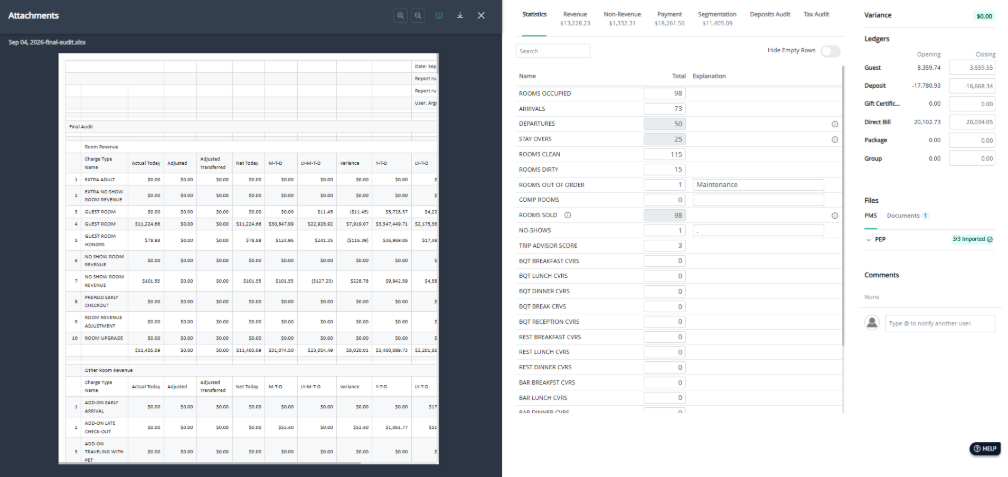
The Daily Activity 2.0 viewer only opened PDFs and images, so anything else meant leaving the workflow to look at it. The viewer now handles every file type the previous version did.
- Click an attachment on the PMS or Documents tab and it opens in the viewer, whatever the file type.
- Search within an open document and copy text out of it, so you can pull a figure off a statement without retyping it.
- Nothing downstream changes: this affects how you read a document, not how it's attached, processed, or used anywhere else in Daily Activity.
Was this article helpful?
That’s Great!
Thank you for your feedback
Sorry! We couldn't be helpful
Thank you for your feedback
Feedback sent
We appreciate your effort and will try to fix the article