Each report in a Workspace has its own options: accounting basis, property labels, which rows are expanded and which columns are visible. This article covers each one. The options available vary by report.
Prerequisites
- A report is open in a Workspace.
Step-by-Step Guide
Step 1: Choose Accrual or Cash
Select Accrual or Cash in the report toolbar. The setting applies to this report only, so you can have an accrual Balance Sheet and a cash Operating Statement in the same Workspace.
Step 2: Choose How Properties Are Labeled
Select EHID, Property Name or Legal Name to change how properties are labeled in the column headings.
Step 3: Expand and Collapse Rows
- Select + next to a section to expand it, or − to collapse it.
- To expand or collapse every row at one level at once, use the + or − in that column heading (for example, Financial Statement Section).
- To sort, select the arrow in a column heading.
Step 4: Open Report Settings
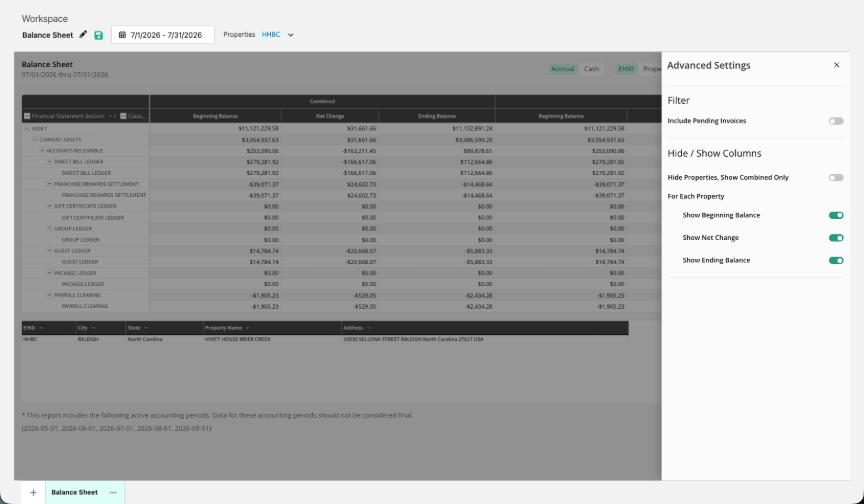
Select Report Settings to open the Advanced Settings panel. On the Balance Sheet, for example, the panel includes:
- Filter > Include Pending Invoices: include invoices that have not yet been posted.
- Hide / Show Columns > Hide Properties, Show Combined Only: show only the combined total for a multi-property report.
- For Each Property: turn Show Beginning Balance, Show Net Change and Show Ending Balance on or off.
TIP: For large portfolios, the fastest way to make a report readable on screen is to turn on Hide Properties, Show Combined Only or turn off columns you don't need.
NOTE: Report options apply to the current tab only and are kept when you save the Workspace.
Step 5: Filter or Expand the Table
Hover over the top right of the report to show the table tools: a filter, a full-screen view and a ⋮ menu with more options.
Summary
- Accrual / Cash and property labels are set on each report.
- Expand, collapse and sort rows directly in the report.
- Use Report Settings to filter and to show or hide columns.
Was this article helpful?
That’s Great!
Thank you for your feedback
Sorry! We couldn't be helpful
Thank you for your feedback
Feedback sent
We appreciate your effort and will try to fix the article