A Workspace holds one or more reports as tabs. All the reports in a Workspace share one date range and one set of properties, so you set them once instead of re-entering them for each report.
Prerequisites
- You have run at least one report. See Reporting: Running a Report.
Parts of the Workspace
Area | What it does |
Workspace header (top) | The Workspace name, the rename (pencil) and save icons, and the date range and Properties used by every report in the Workspace. |
Report toolbar | The report title and dates, Accrual / Cash, the property labels (EHID / Property Name / Legal Name), Report Settings and download. |
Report | The report itself. Expand or collapse rows and sort columns here. |
Hotel directory | The properties included in the report, with their address details. |
Tab bar (bottom) | + to add a report, one tab per report, and a ... menu on each tab. |
Step-by-Step Guide
Step 1: Add Another Report
- Select + at the bottom left of the Workspace.
- Search for the report or choose it from the list.
- The report opens in a new tab and uses the Workspace date range and properties.
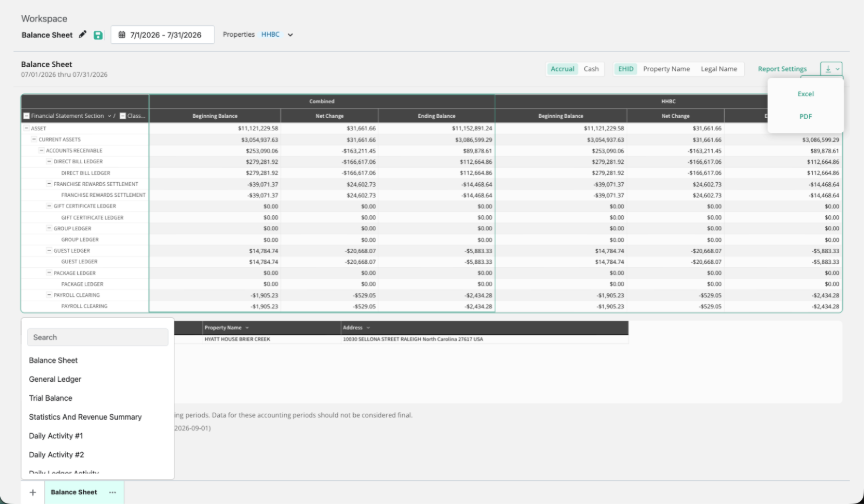
Step 2: Switch Between Reports
Select a tab at the bottom of the page to switch reports. Each tab keeps its own report options, such as Accrual / Cash and Report Settings.
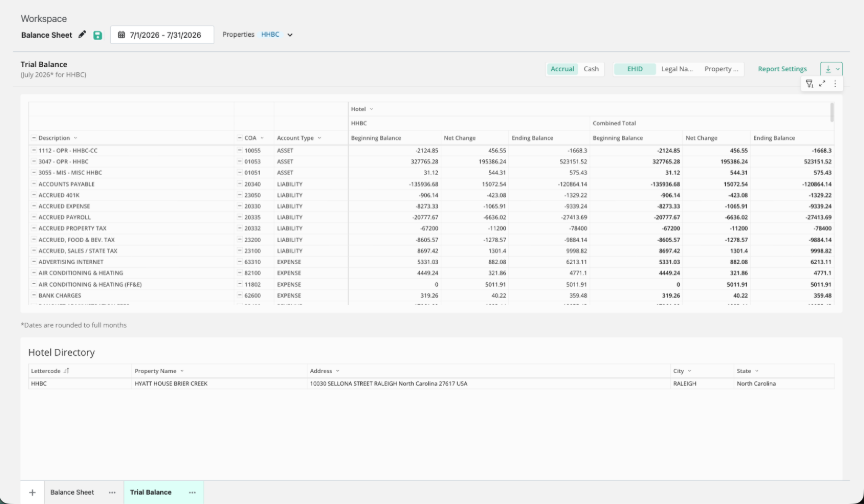
Step 3: Change the Date Range or Properties
Change the date range or Properties in the Workspace header. Every report in the Workspace uses the new selection.
NOTE: When you select more than one property, reports show a column group for each property and a combined total.
NOTE: Trial Balance reports by accounting period, so its dates are rounded to full months. A note under the report says so.
Step 4: Manage a Tab
Select ... on a tab for more options.
Summary
- A Workspace holds several reports as tabs.
- The date range and properties are set once in the Workspace header and apply to every report.
- Report options, such as Accrual / Cash, are set on each tab.
Was this article helpful?
That’s Great!
Thank you for your feedback
Sorry! We couldn't be helpful
Thank you for your feedback
Feedback sent
We appreciate your effort and will try to fix the article