This article explains how to find a report on the Templates tab, set its date range and properties, and open it in a Workspace.
Prerequisites
- You have permission to the report in Inn-Flow.
Step-by-Step Guide
Step 1: Open Reporting
- Navigate to Business Intelligence > Reporting.
- The Templates tab opens. It lists every report you can run, with its Name, Type and Last Updated date.
- To find a report quickly, type part of its name in Search.
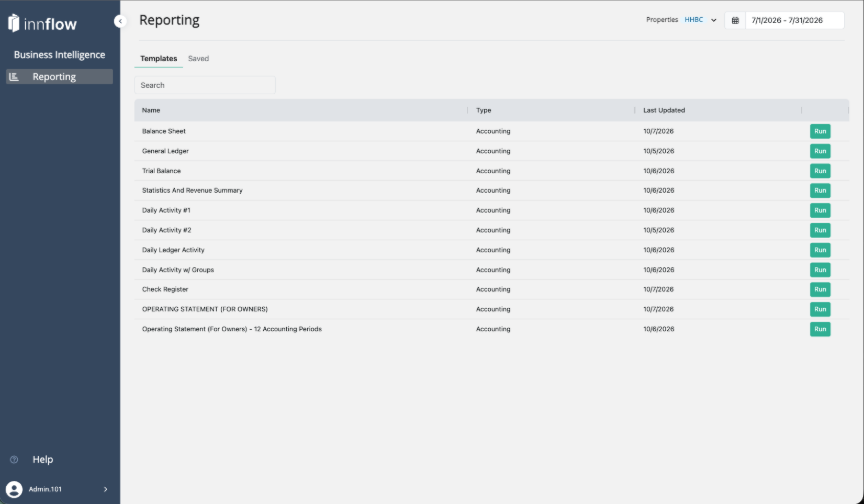
NOTE: If you see a No Reports Available screen, you don't have permission to any reports in Reporting yet. Ask your Inn-Flow administrator to check your report permissions.
Step 2: Select Run
- Select Run next to the report.
- The Run Report window opens and shows the report name.
- Set the Date Range using the calendar.
- Select one or more Properties from the drop-down.
- Select Run. To close the window without running the report, select Cancel.
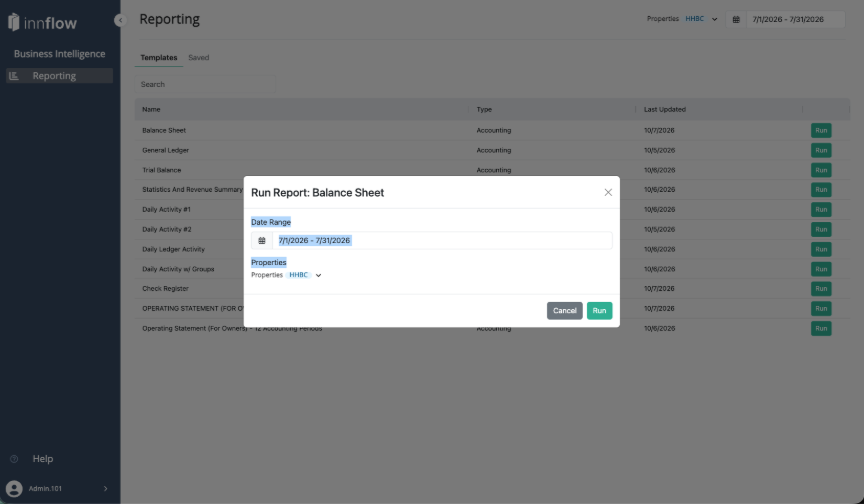
TIP: The Properties and date range at the top right of the Templates page pre-fill the Run Report window. If you plan to run several reports, set them first.
Step 3: Review the Report in the Workspace
The report opens in a Workspace. The report name appears at the top left and as a tab along the bottom of the page. From here you can change report options, add more reports, save the Workspace, or export.
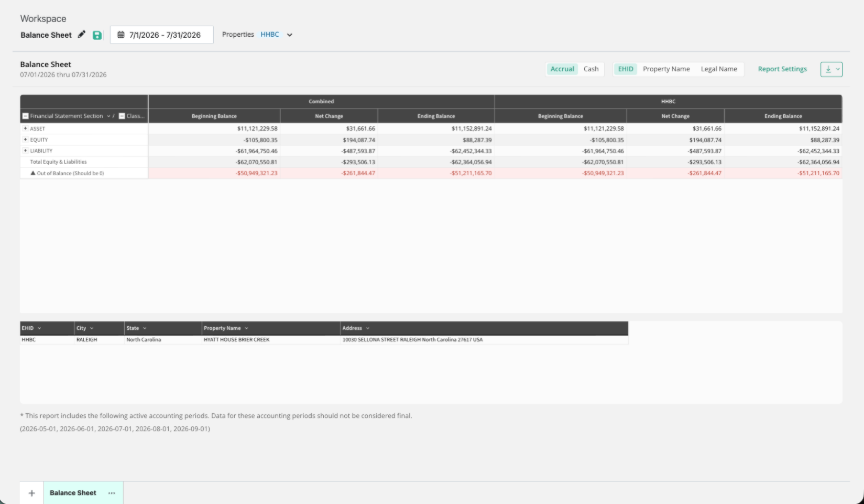
IMPORTANT: If the report includes accounting periods that are still open, the footnote lists them. Figures for those periods are not final.
Summary
- Find reports on the Templates tab and select Run.
- Set the Date Range and Properties in the Run Report window.
- The report opens in a Workspace, where you can keep working.
Was this article helpful?
That’s Great!
Thank you for your feedback
Sorry! We couldn't be helpful
Thank you for your feedback
Feedback sent
We appreciate your effort and will try to fix the article