Overview
This guide walks you through configuring and scheduling the three required reports from Agilysys Stay PMS so that Inn-Flow can automatically import your daily hotel data. Whether you are onboarding with Inn-Flow for the first time or transitioning your property from a previous PMS to Agilysys Stay, the setup process is the same.
Note: This guide applies to all Marriott-branded properties that have transitioned to the Agilysys Stay PMS platform, including those migrating from Fosse, LightSpeed, Opera, or any other legacy PMS.
Before You Begin
Make sure you have the following before starting the report configuration:
- Access to the Agilysys Stay PMS Reports module with permissions to run and schedule Dynamic Reports.
- Your property’s Inn-Flow Daily Activity email address. This can be found inside the Inn-Flow application at:
Administration → Entities → Select Your Entity → Import Email Addresses Tab → Daily Activity email address
Important for FOSSE Conversions: If your property is converting from FOSSE to Agilysys Stay PMS, the email address you previously used for sending FOSSE reports to Inn-Flow will be replaced once your property is converted. After conversion, you must obtain your new Daily Activity email address using the path above and begin sending all Agilysys Stay reports to that new address. The new email will look similar to 12345_Agilysys-PMS@inn-flow.net.
Required Reports
Inn-Flow requires the following three reports from the Dynamic Reports section in Agilysys Stay. Each must be scheduled to send daily as a CSV file at night audit completion.
Report Name | Configuration | Key Data Provided |
Trial Balance | Default settings | Revenue, Non-Revenue & Ledger Balances |
Detailed Flash | Default settings | Statistics |
Revenue by Market Segment with Groups | Group By: Market Segment All checkboxes unchecked | Rooms Sold & Room Revenue per Market Segment |
Note: When making your report selection, use the report labeled NAP.
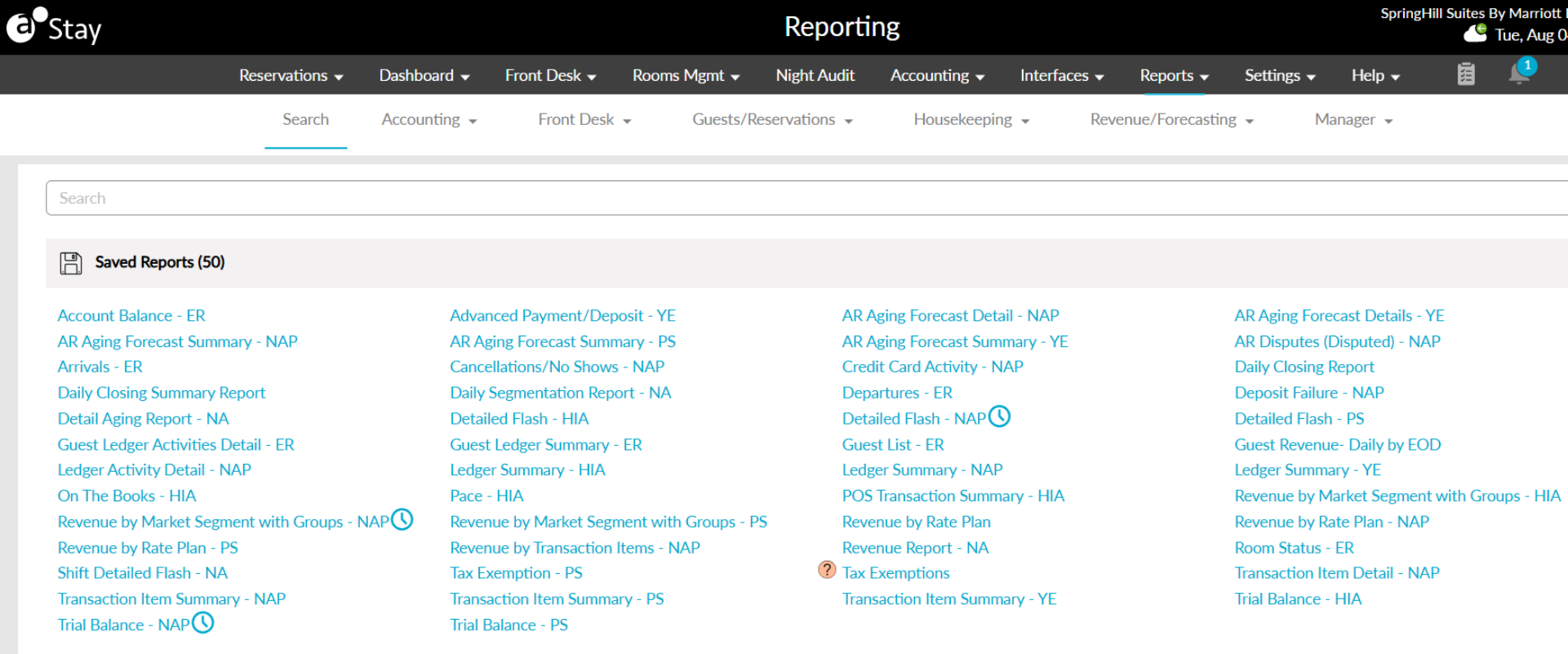
Step-by-Step Setup
1 | Log In to Agilysys Stay PMS Log in to the Agilysys Stay PMS application using your property credentials. |
2 | Navigate to Dynamic Reports From the top navigation bar, click on Reports. Then select Dynamic Reports from the menu. All three required reports are located within this section. |
3 | Configure the Trial Balance Report Locate and open the Trial Balance report. This report uses default settings — no additional configuration changes are needed. Simply verify the report name shows “Trial Balance” and that your property is selected, then proceed to scheduling (Step 6). |
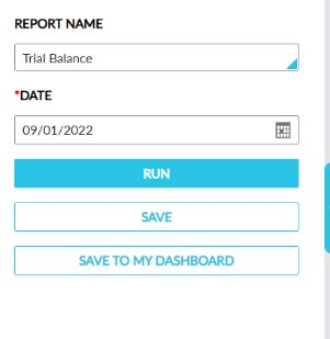
Agilysys Knowledge Base: Trial Balance Report Documentation
4 | Configure the Detailed Flash Report Locate and open the Detailed Flash report. Like the Trial Balance, this report uses default settings. Verify the report name shows “Detailed flash” and your property is selected, then proceed to scheduling (Step 6). |
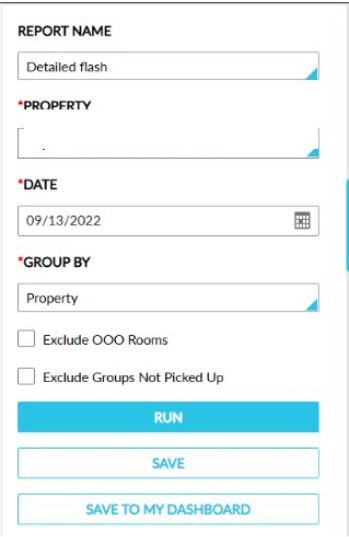
Agilysys Knowledge Base: Detailed Flash Report Documentation
5 | Configure the Revenue by Market Segment with Groups Report This report requires specific configuration changes. Locate and open the Revenue by Market Segment with Groups report, then apply the following settings: |
- GROUP BY: Set to “Market Segment”
- Checkboxes: Ensure all checkboxes are unchecked (Unpicked Group Blocks, Zero Balance Days, Room Type, Group By Date)
- Segment Filter: Leave blank (no filter applied)
Important: Setting the Group By to “Market Segment” is critical. This ensures the report output contains one row per unique market segment, each with the associated rooms sold and room revenue that Inn-Flow needs for data import.
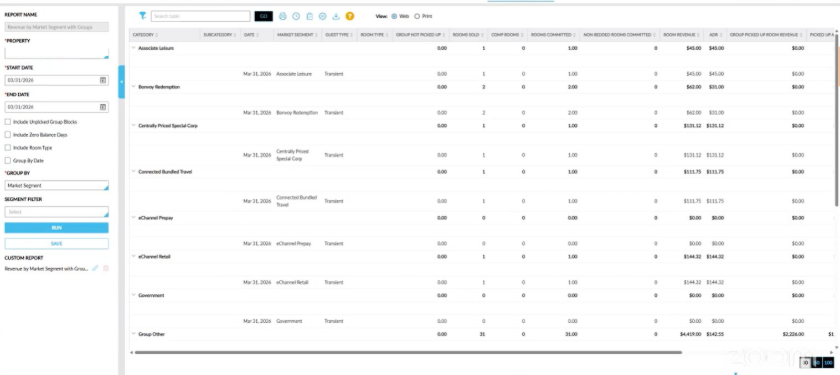
Agilysys Knowledge Base: Revenue by Market Segment Report Documentation
6 | Schedule Each Report Repeat the following scheduling process for all three reports. From any report view, click the scheduling icon (clock icon) to open the Scheduler dialog, then configure as follows: |
Setting | Value |
Active | Toggled ON (blue) |
Schedule Type | At night audit completion |
Generate Report As | CSV |
Toggled ON (blue) | |
TO | Your property’s Inn-Flow Daily Activity email address |
Subject | A descriptive name (e.g., “[Property] Trial Balance”) |
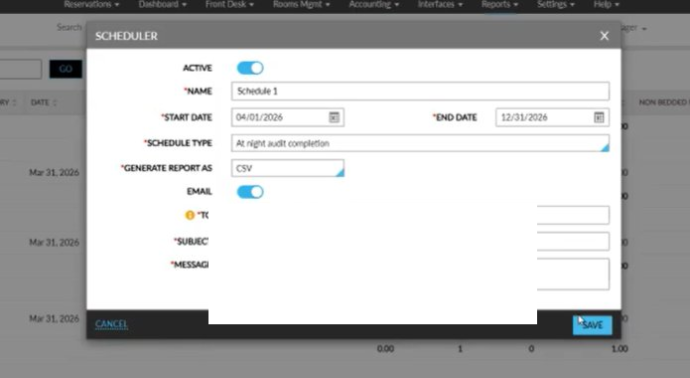
Important: Make sure the Schedule Type is set to “At night audit completion” — not hourly or a specific time. This ensures the reports are generated with the finalized data for the business day after night audit has concluded.
Note: Remember to schedule all three reports. Each report needs its own schedule entry configured with the same settings above, all sending to the same Inn-Flow Daily Activity email address.
Verification
After scheduling all three reports, Inn-Flow recommends verifying the setup by confirming the following:
- Each report’s schedule is set to Active (toggled ON).
- The Schedule Type for all three reports is “At night audit completion.”
- The format is set to CSV for all three reports.
- The TO email address matches the Daily Activity email found in Inn-Flow under Administration → Entities → Import Email Addresses.
- The Revenue by Market Segment with Groups report is grouped by Market Segment with all checkboxes unchecked.
Tip: After your first night audit following setup, confirm data was received and imported successfully.
Need Help?
If you run into issues configuring or scheduling these reports, here are your support options:
- For Agilysys Stay PMS questions: Contact your Agilysys support representative or refer to the knowledge base links provided in each report section above.
- For Inn-Flow integration questions: Contact your Inn-Flow account representative, or Support@Inn-Flow.com to confirm data is being received and imported correctly.
Was this article helpful?
That’s Great!
Thank you for your feedback
Sorry! We couldn't be helpful
Thank you for your feedback
Feedback sent
We appreciate your effort and will try to fix the article