Yes, Daily Activity Charge Codes can be updated. Use the steps below to make changes to these mapping items:
From the Accounting Navigation, select PMS Mapping from the Settings section, then select the hotel.
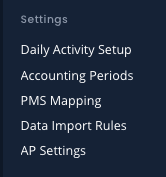
If you do not have access to this page, please contact your supervisor as this is managed by Roles & Permissions.
Edit a Charge Code
From the top of the page, select Charge Codes

To edit a Charge Code, select the code you wish to edit. (Tip: To locate a specific Charge code, use Ctrl + F to search the page.)
If a Charge Code has not been used previously, you are able to change any of the fields in the pop-up & Save.
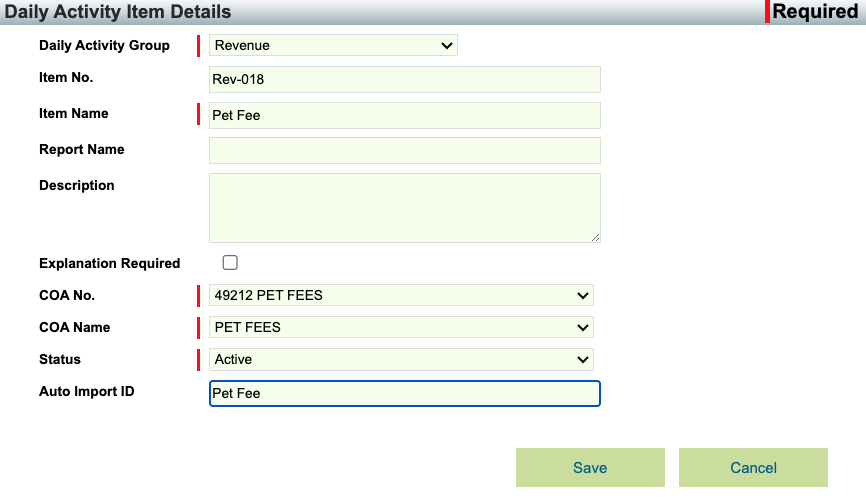
If a Charge Code has already been used, you can edit the Item Number, Item Name, Report Name, Description, Explanation Required, and the Status. You are not able to edit the COA of a Charge Code that has been previously used.
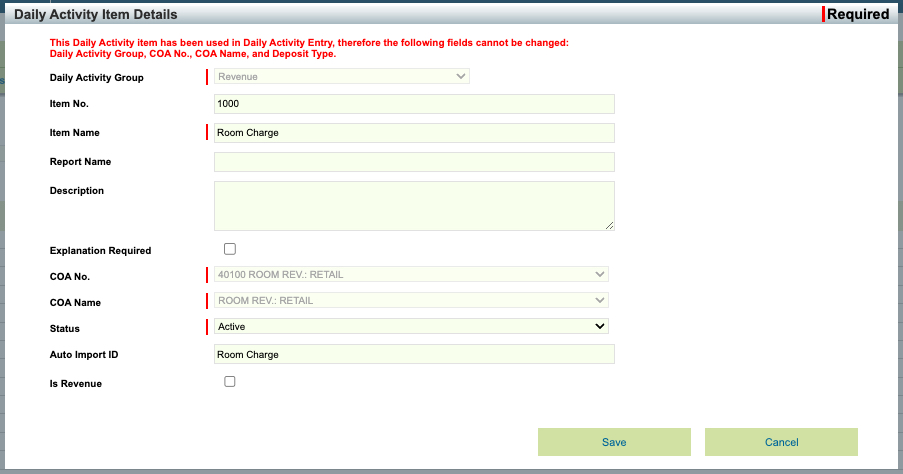
In this case, you would need to mark the original Daily Activity Item as Inactive and create a new one with the correct COA. If there is an Auto-Import ID Present, be sure to remove this from the Inactive Daily Activity Item.

Then, create the new, corrected item. Select the + Daily Activity Item button on the top right to add a new charge code.

Complete the required fields in the pop-up window:
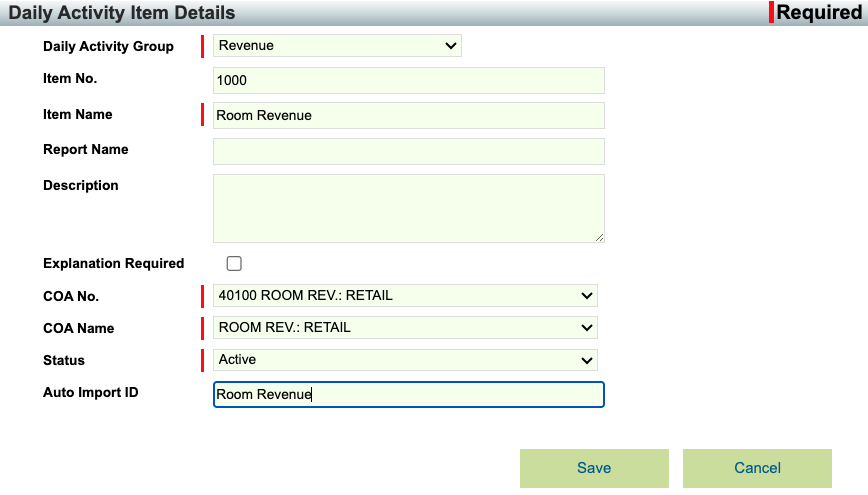
IF PRO Tip: To easily mirror the details of the code that you inactivated in the step above, open a second tab of the mapping page or take a screenshot first, so that you can view the details while making your selections.
- Select what Daily Activity Group the charge code belongs in.
- All revenue - related codes (Room Revenue, F&B Revenue, Adjustments… etc.) should be added to the Revenue section.
- All taxes and Gratuities should be added to the Non-Revenue section.
- All payment related codes (Cash, Credit Cards, Points Redemptions…etc.) should be added to the Payment section.
- Enter the Item Number and Item Name of the code as they appear on the PMS reports.
- Example: 1000 - Room Charge
- Enter the Report Name and Description of the code. These fields are not mandatory.
- Select whether an Explanation is required when this charge code is used. If you require an explanation on a code, the user will need to complete the explanation field when used before Saving.
- Select the COA Number or COA Name which this charge code should be mapped to. If you are unsure, you can reach out to a supervisor, or look at a similar existing charge code’s mapping.
- If your PMS is set up for Auto-Import, you will also need to fill in the Auto Import ID field with the appropriate for this item. This field is used to import the item into the Daily Activity page.
- Save.
The Daily Activity Charge code will now be mapped to the Active mapping COA moving forward. If there are past entries that must be re-classed, they will need to be updated using a Journal Entry.
Was this article helpful?
That’s Great!
Thank you for your feedback
Sorry! We couldn't be helpful
Thank you for your feedback
Feedback sent
We appreciate your effort and will try to fix the article