Overview
This card covers the financial backbone of your account: your chart of accounts, your bank and credit card accounts, and your vendors.
Start with the chart of accounts. It’s the one thing everything else here depends on.
Chart of Accounts
You have two options:
Start from the USALI 12th edition standard. Inn-Flow loads the industry-standard chart for you, and you adjust it — edit what doesn’t fit, add what’s missing, remove what you don’t use. This is the right choice for most hotels and it’s much faster.
Build your own. If you have an established chart you need to keep, you can build it out yourself. It takes longer, and it’s worth talking through with your implementation specialist first.

Either way, one rule applies: account numbers must be five digits. That’s a system requirement. It’s the most common thing customers get caught on, so if you’re bringing across a chart with a different numbering scheme, plan for the conversion.
Your chart of accounts is set once for your whole organization and applies to all your properties.
Example: You run a portfolio of select-service hotels, with a chart from your old system that uses four-digit codes. Rather than rebuilding it, you start from USALI 12th, work down the list removing departments you don’t operate, and add the few accounts specific to how you report.
Bank & Credit Card Accounts
Add the bank accounts and credit cards your properties use.
You set these up per property. If the same account is shared across several properties, you can assign it to all of them while you’re creating it - you don’t need to enter it more than once.

We never ask for your online banking credentials. No usernames, no passwords, ever.
What we do need is read-only access so we can see your transactions. Your implementation specialist will walk you through setting that up with your bank. This happens outside Inn-Flow, so it’s easy to forget - and your accounting can’t be reconciled without it.
Vendors

Add the vendors your properties buy from.
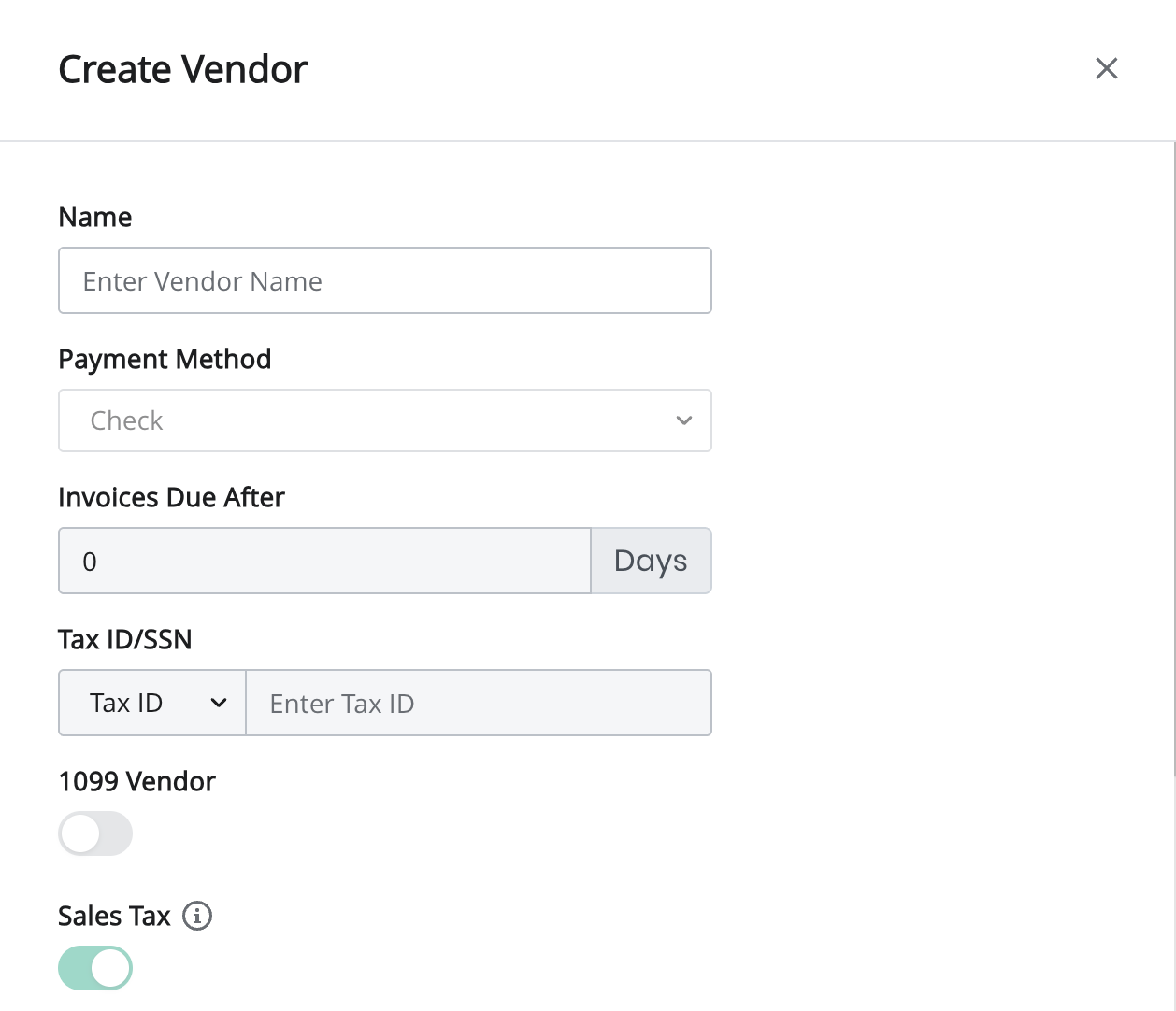
Each vendor has one or more accounts — your account number with that vendor, and which property it belongs to. The same vendor often has a different account number at each hotel.
The address you enter for a vendor applies to all of its accounts. You can change it on an individual account afterwards if one property pays somewhere different.

Name change: what used to be called a vendor contract is now called an account. Nothing about how it works has changed — the name just matches what you’d say to your supplier.
Set up your bank accounts first. You can save a vendor without any accounts, but you can’t add accounts to it until at least one bank account exists. Inn-Flow will tell you if you try. Doing banks first saves you going back through every vendor later.
Add vendors one at a time; there’s no file upload yet. Focus on the vendors you use regularly — you can add the rest any time from the normal Vendors page.
A note on your property management system
Mapping your PMS revenue codes to your chart of accounts is not part of onboarding. It’s technical and specific to your PMS, so your implementation specialist handles it with you directly.
Nothing is needed from you here, but it does have to happen before your daily activity will import correctly — so expect it to come up on a call.
Common questions
Can I change my chart of accounts after I’ve completed the task? Yes. Click the green checkmark to reopen the task, or edit it from the normal Chart of Accounts page once onboarding is done. Talk to your specialist before making big structural changes after you’ve gone live, because it affects your historical reporting.
Why can’t I add an account to my vendor? You don’t have a bank account set up yet. Add at least one and you’ll be able to add vendor accounts. You can still save the vendor itself in the meantime.
Do I need every vendor before I can finish? No. Add the ones you use regularly.
What about my historical data? Your implementation team handles that separately. It isn’t part of onboarding.
Related articles
Was this article helpful?
That’s Great!
Thank you for your feedback
Sorry! We couldn't be helpful
Thank you for your feedback
Feedback sent
We appreciate your effort and will try to fix the article