Pay Per Room (PPR) allows your property to automatically calculate housekeeper wages based on the number of rooms cleaned rather than hours worked. This guide walks you through configuring PPR from start to finish, including how to verify it is working correctly.
Prerequisites
Before you begin, confirm the following:
- You have access to the Labor Management > Models section in Inn-Flow.
- The housekeeper position is using the MPCR (Minutes Per Clean Room) model type. PPR is only available on MPCR models.
- You have the per-room pay rates from the property.
- You have requested the Labor Calculation Engine to be enabled for your Enterprise. If not, please reach out to Support or your Inn-Flow Representative.
Step 1: Navigate to Labor Models
- In the main navigation, go to Labor Management > Models.
- Locate the housekeeper position you want to configure.
Step 2: Enable the Paid-Per-Room Toggle
- Select the model associated with the housekeeper position.
- Confirm the model type is set to MPCR. You will only see the PPR option on MPCR models.
- Find the Paid-Per-Room toggle and turn it on.
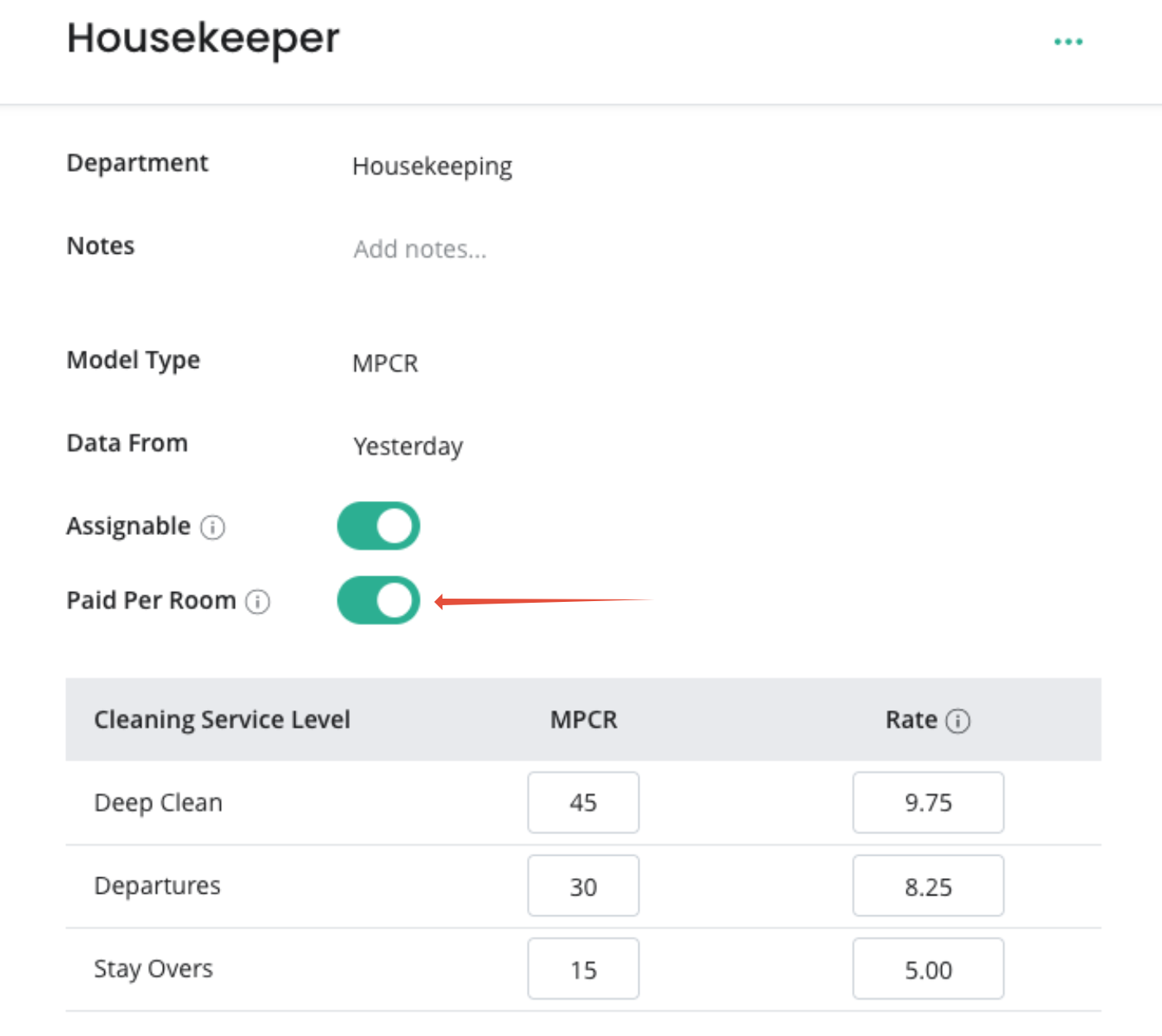
Once enabled, a Rate column will appear alongside the existing MPCR column. This signals that Inn-Flow will now calculate housekeeping wages from the rate table rather than the employee's hourly rate.
Important: When PPR is active, the employee's hourly rate is not used for housekeeping wages. All pay is driven by the rate table you configure in the next step.
Step 3: Configure Rates for Each Service Level
Each service level (e.g., Stay Over, Departure, Deep Clean) requires two values to be filled out:
| Field | Description |
| MPCR | Minutes per clean room for that service level |
| Rate | Dollar amount paid per room for that service level |
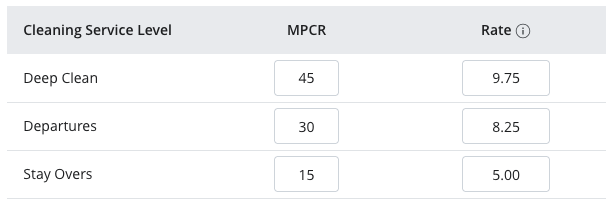
Typical rate structure:
- Stay Overs — lowest rate (standard room refresh)
- Departures — slightly higher (full room reset)
- Deep Cleans — highest rate (most labor-intensive)
Note: Some properties have additional service levels based on their brand standards or housekeeping program. Scroll through all service levels to make sure none are missed.
Once all MPCR and Rate fields are filled in, save the model.
Step 4: Verify the Configuration
After saving, allow a moment for the models to recalculate, then verify the setup is working:
- Navigate to Housekeeping.
- Select an unapproved date.
- Assign rooms to a housekeeper across one or more service levels.
- Click Continue to process the assignment.
- Open the employee's Timesheet.
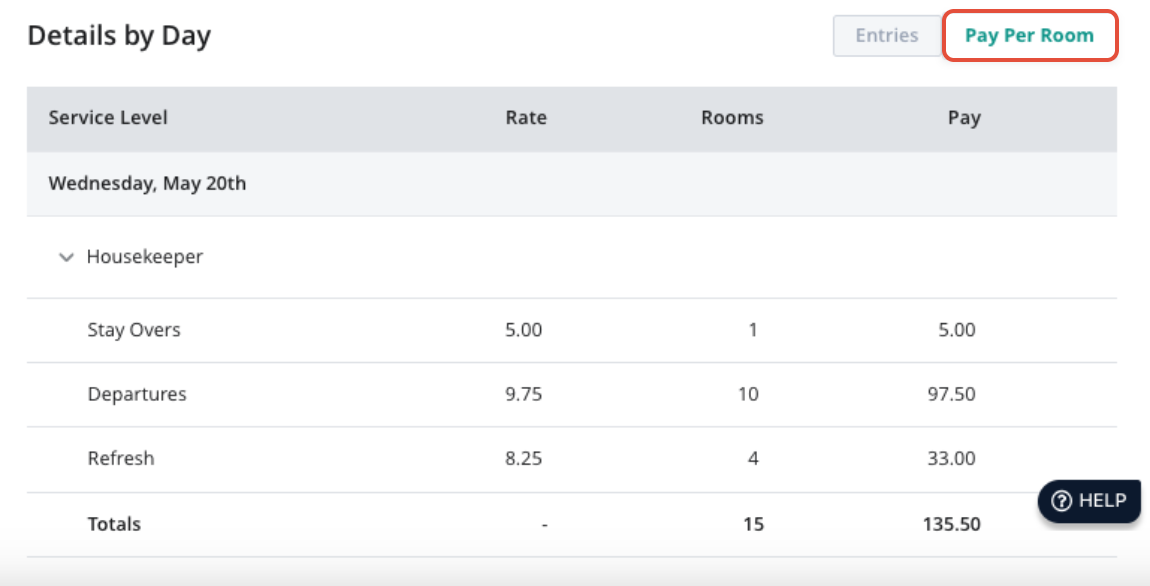
- Click the Pay Per Room tab.
You should see a breakdown showing:
- The rate applied per service level
- The number of rooms cleaned
- The employee's total pay for housekeeping
How PPR Works with Multi-Position Employees
If a housekeeper also works in another position (e.g., Front Desk), only the time spent in the housekeeping position is paid by room. Other positions are compensated according to their own pay rules.
To review a full shift breakdown including pay by position and service level, open the Timesheet Details view for that day/employee.
How to Override the PPR Rate
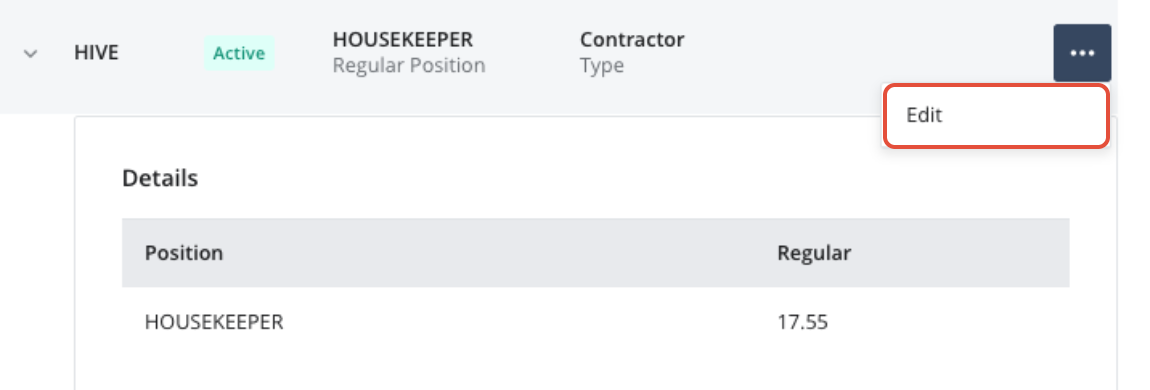
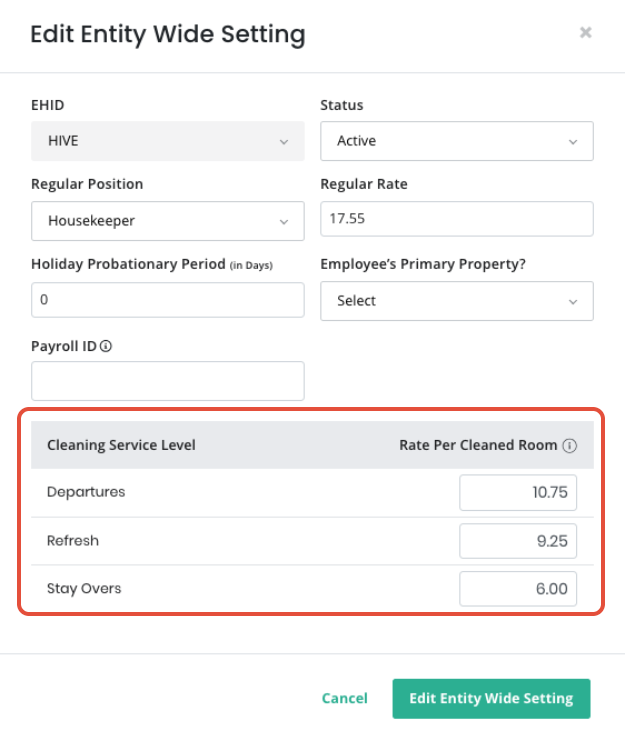
Within a user's profile, you are able to override the rate per room rate by adding in the rate per service level for that specific employee. If configured at the employee level, the system will override the configured selection on the Model and instead use the values entered in the profile.
To configure a user's Rate, navigate to their Profile and Edit the Entity Wide Setting for the housekeeping position. If they do not have an entity wide setting for a housekeeping position, add a new entity wide setting.
Was this article helpful?
That’s Great!
Thank you for your feedback
Sorry! We couldn't be helpful
Thank you for your feedback
Feedback sent
We appreciate your effort and will try to fix the article