This guide includes the following topics:
- Overview
- Daily Transactions
- Ledger Activity
- Deposits Audit
- Review Tasks
- Files
- Night Audit Checklist
- Complete Entry
Overview
Daily Activity Entry is used to collect the PMS activity for each day, after the night audit is completed for that day. The following basic steps should be followed:
- Upload night audit reports within the Files section.
- Complete the Statistics section.
- Complete the Revenue section.
- Complete the Non-Revenue section.
- Complete the Payment section.
- Complete the Segmentation section.
- Complete the Deposits Audit section.
- Complete the Tax Audit section.
- Enter the Closing Balances for all ledgers in the Ledger Activity section.
- Complete the Night Audit Checklist.
- Review Tasks.
- Mark the Entry Completed.
Daily Transactions
Statistics
How to Enter the Daily Statistics:
- Select the Accounting module
- Navigate to Daily Activity > Daily Activity Entry
- In the top left of the screen, click on the Select button
- From the drop-down menu, select the property E/HID
- Select the appropriate Date (system will default to the oldest unapproved day)
- Click anywhere on the Statistics tab to access the statistics entry screen
- Enter the room counts for each item listed (see below), including any required explanations.
- Save Changes.
Revenue
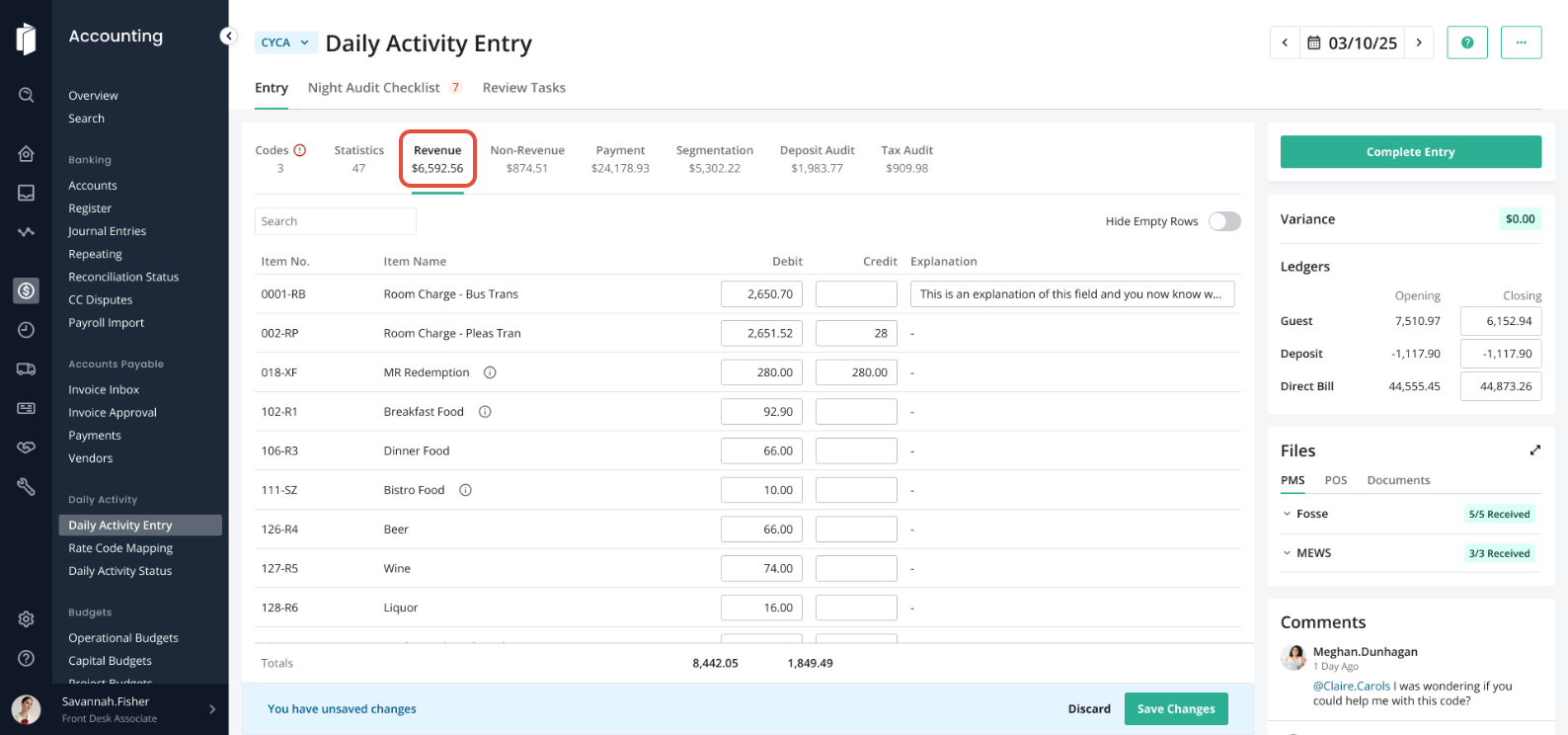
The Revenue section of Daily Activity Entry records the detailed daily revenue totals for the property.
How to Enter the Daily Revenue:
- Select the Accounting module
- Navigate to Daily Activity > Daily Activity Entry
- In the top left of the screen click on the Select button
- From the drop-down menu, select the property E/HID
- Select the appropriate Date (system will default to the current date)
- Click anywhere on the Revenue tab to access the revenue entry screen
- Use the PMS (property management system) daily closing reports to enter the revenue totals for each item/charge code (The name and/or format of the closing reports may vary based on the PMS used at each property).
- Once all revenue figures are entered, select Save & Close.
Non-Revenue
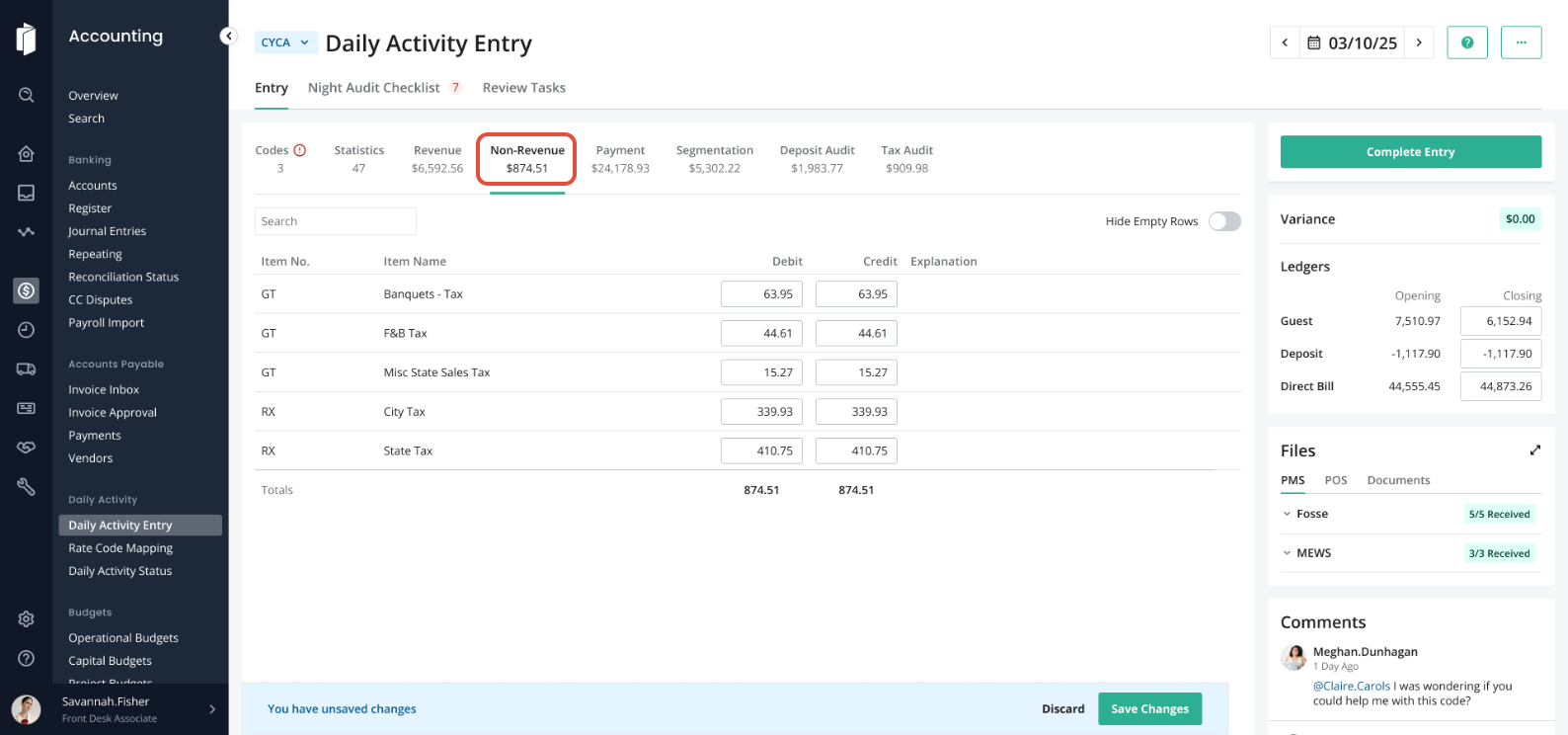
The Non-Revenue section of Daily Activity Entry is a detailed reporting of tax payments collected from guests each day.
How to Enter the Daily Non-Revenue:
- Select the Accounting module
- Navigate to Daily Activity > Daily Activity Entry
- In the top left of the screen, click on the Select button
- From the drop-down menu, select the property E/HID
- Select the appropriate Date (system will default to the oldest unapproved day)
- Click anywhere on the Non-Revenue tab to access the non-revenue entry screen
- Enter the total amount collected for each tax item in the corresponding field (These figures are detailed in the daily closing reports from the PMS, but report name and format may vary based on the PMS at the property).
- Once all tax figures are entered, select Save Changes.
Payment
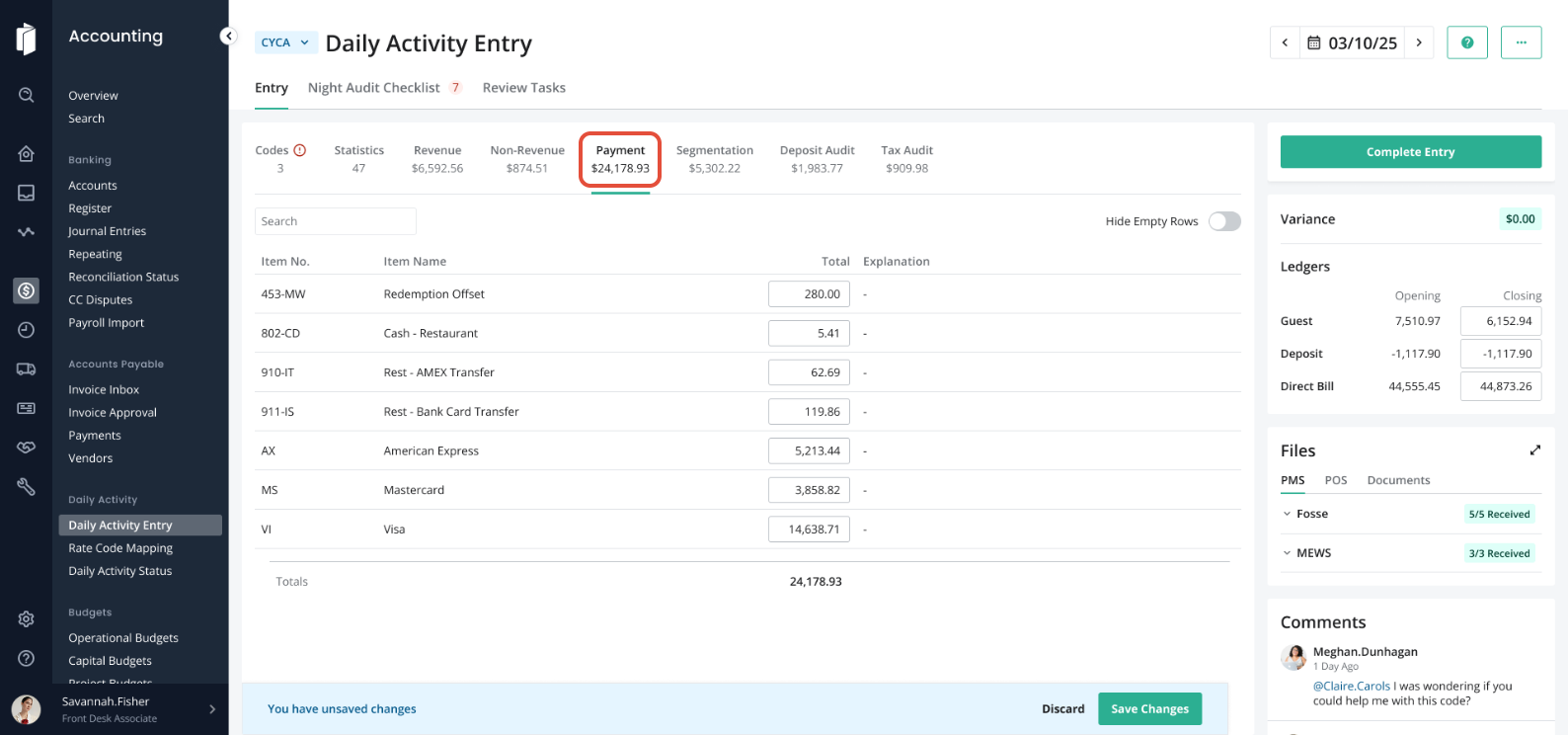
The Payment section of Daily Activity Entry details the total dollar amount of the various payments collected from guests each day.
How to Enter the Payment Details:
- Select the Accounting module
- Navigate to Daily Activity > Daily Activity Entry
- In the top left of the screen, click on the Select button
- From the drop-down menu, select the property E/HID
- Select the appropriate Date (system will default to the oldest unapproved day)
- Click anywhere on the Payment tab to access the payment entry screen
- Use figures from the PMS’ daily closing reports to enter the payments collected for each payment type (The name and/or format of the daily closing reports will vary depending on the PMS used at the property).
- Once all payment figures are entered, select Save Changes.
Segmentation
The Segmentation section of Daily Activity Entry records the daily room revenue and total occupied rooms by market Segmentation and Rate Code.
How to Enter the Totals by Segmentation:
- Select the Accounting module
- Navigate to Daily Activity > Daily Activity Entry
- In the top left of the screen click on the Select button
- From the drop-down menu, select the property E/HID
- Select the appropriate Date (system will default to the oldest unapproved day)
- Click anywhere on the Segmentation tab to access the segmentation entry screen
- Use the PMS daily closing reports to enter the room revenue and rooms occupied by Segmentation and Rate Code. (These figures are found in the PMS daily closing reports, but report name and format may vary depending on the PMS used at the property).
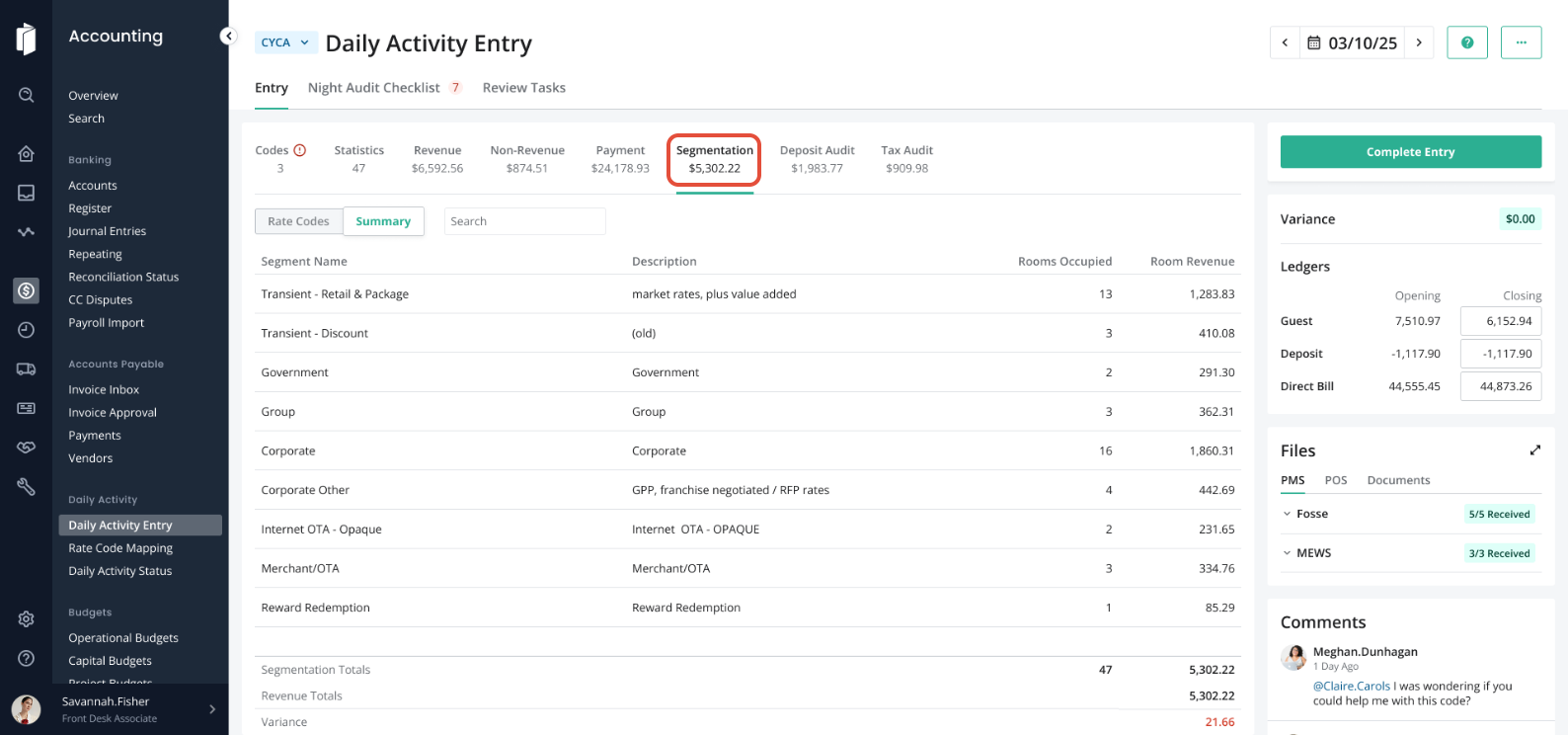
- Make sure the total room revenue and total occupied rooms match in both sections (Segmentation Total and Revenue Totals)
- At the bottom of the screen, the field titled Revenue Totals will auto fill once the Revenue section is complete
- Segmentation Total and Revenue Totals (from Revenue Page) must balance or the variance amount and field will be highlighted in red.
- Total Rooms Occupied (Segmentation) and Total Room Occupied (Statistics Page) must balance or the system will not allow the entry to be completed.
Once the total revenue amounts balance, select Save Changes.
Ledger Activity
The Ledger Activity section of Daily Activity Entry is utilized to track the net change and balances in the hotel ledger accounts; specifically, Guest Ledger, City Ledger/Direct Bill, and Advanced Deposits.
How to Enter the Daily Ledger Activity:
- Select the Accounting module
- Navigate to Daily Activity > Daily Activity Entry
- In the top left of the screen click on the Select button
- From the drop-down menu, select the property E/HID
- Select the appropriate Date (system will default to the oldest unapproved day)
- In the Daily Activity screen, find the Ledgers on the right of the screen, and select one of the Ledger Types by clicking into the closing balance box. (Guest, Deposits, Gift Certificate, Direct Bill, Etc.)
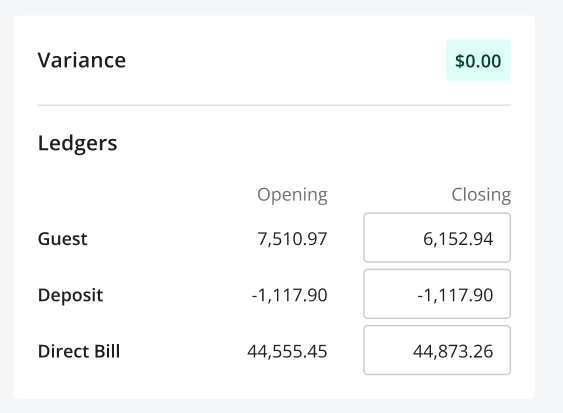
- The opening balance will automatically calculate based on the prior day’s activity (Verify that the beginning balance in Inn-Flow matches the beginning balance on the PMS Daily Closing Report)
- Find the closing balance for the selected ledger account in the PMS Daily Closing Reports and enter it in the Closing Balance (from PMS report) field
- This process should be followed for each Ledger Type listed in the Ledger section of Daily Activity Entry
Deposits Audit
The purpose of the Deposit Audit section of Daily Activity Entry is to reconcile the Actual Deposits Captured to the PMS Total. The figures for the PMS Total fields pull from the Payment section of Daily Activity Entry, which is entered based on the PMS Daily Closing Reports. The figures for the Actual Deposits Captured fields are entered based on the cash deposit ticket and the credit card transmission reports.
How to complete the Deposit Audit:
- Select the Accounting module
- Navigate to Daily Activity > Daily Activity Entry
- In the top left of the screen click on the Select button
- From the drop-down menu, select the property E/HID
- Select the appropriate Date (system will default to the oldest unapproved day)
- In the Daily Activity screen, find the Deposit Audit tab
- The Deposit Audit section will list each deposit type the property accepts as payment (Cash & Checks, Visa, Master Card, AMEX, Discover, etc.)
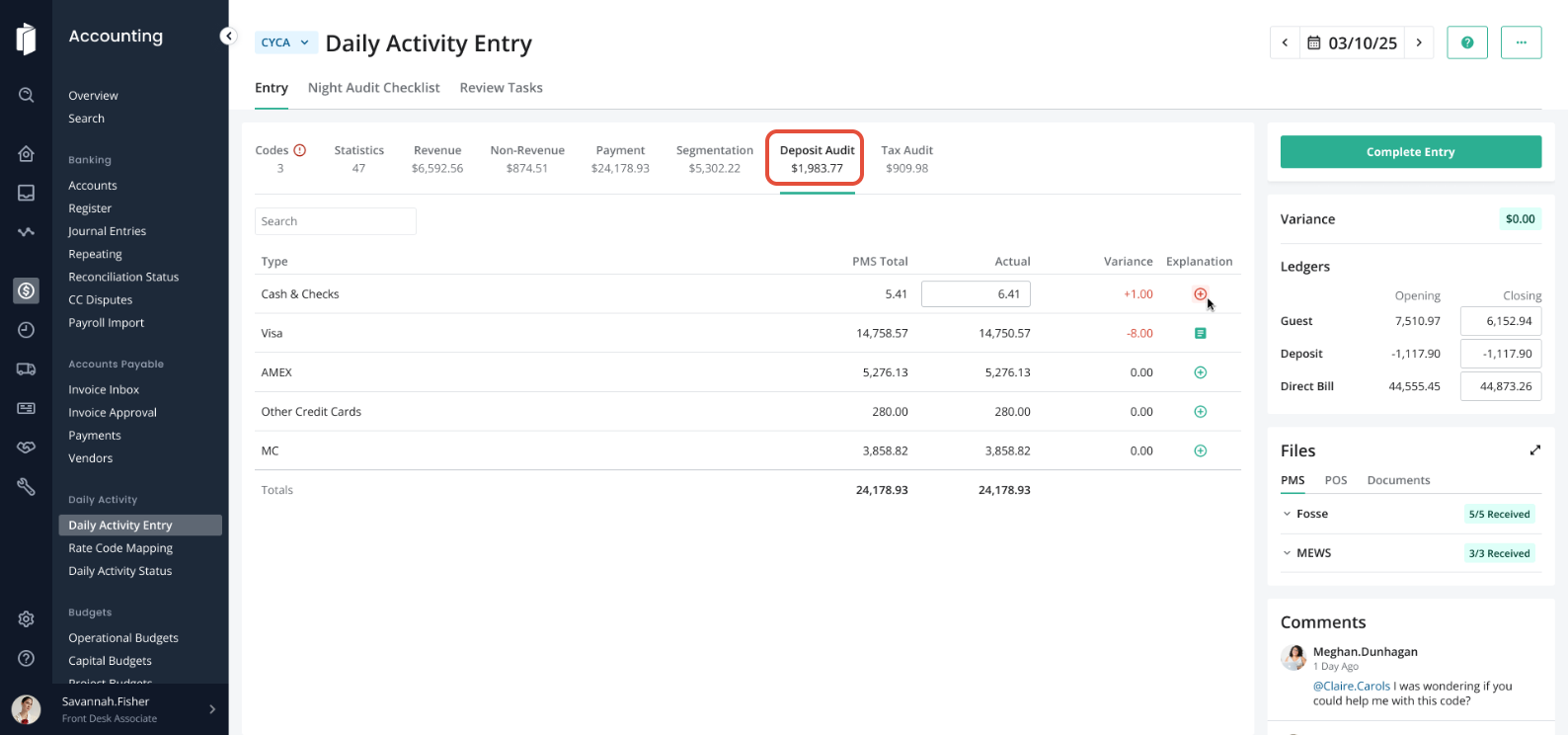
- Select the first Deposit Type by clicking anywhere on the deposit type line
- The PMS Total field will automatically populate if the Payments section of Daily Activity Entry has been completed
- Enter the total deposit amount found on the bank deposit ticket in the Actual field
- The Variance field automatically populates and is the difference between the PMS Total and the Actual Bank Deposits
- The variance field will be highlighted in red if there is a variance
- The manager can’t approve the day if the variance is not reconciled
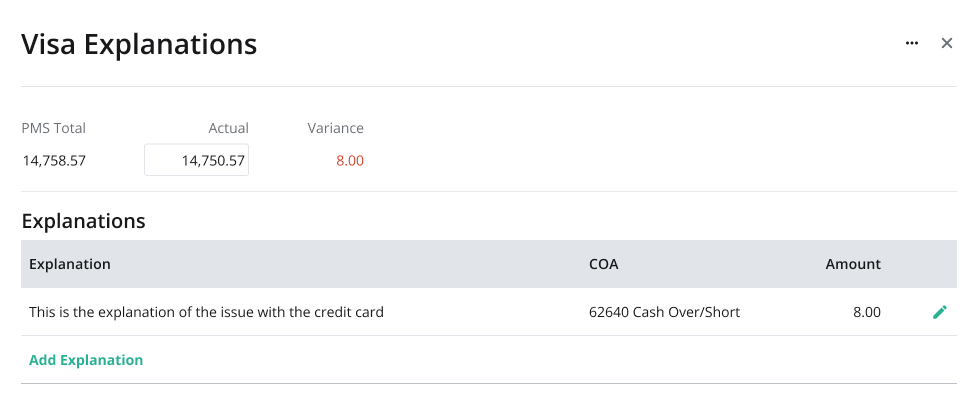
- To add an explanation for your variance, click on the + field found directly to the right of the variance.
- Enter the required data and click the OK button
- This process must be repeated for each Deposit Type listed in the Deposit Audit section
TIP: When reconciling the credit card deposits, pull the figures for the Actual Credit Card Captured field from the Credit Card Transmission Report. (The name of this report will vary depending on the PMS used by the property.)
Review Tasks
The Review Tasks section is used to list and track the progress of any problems that occurred while completing the Daily Activity Entry.
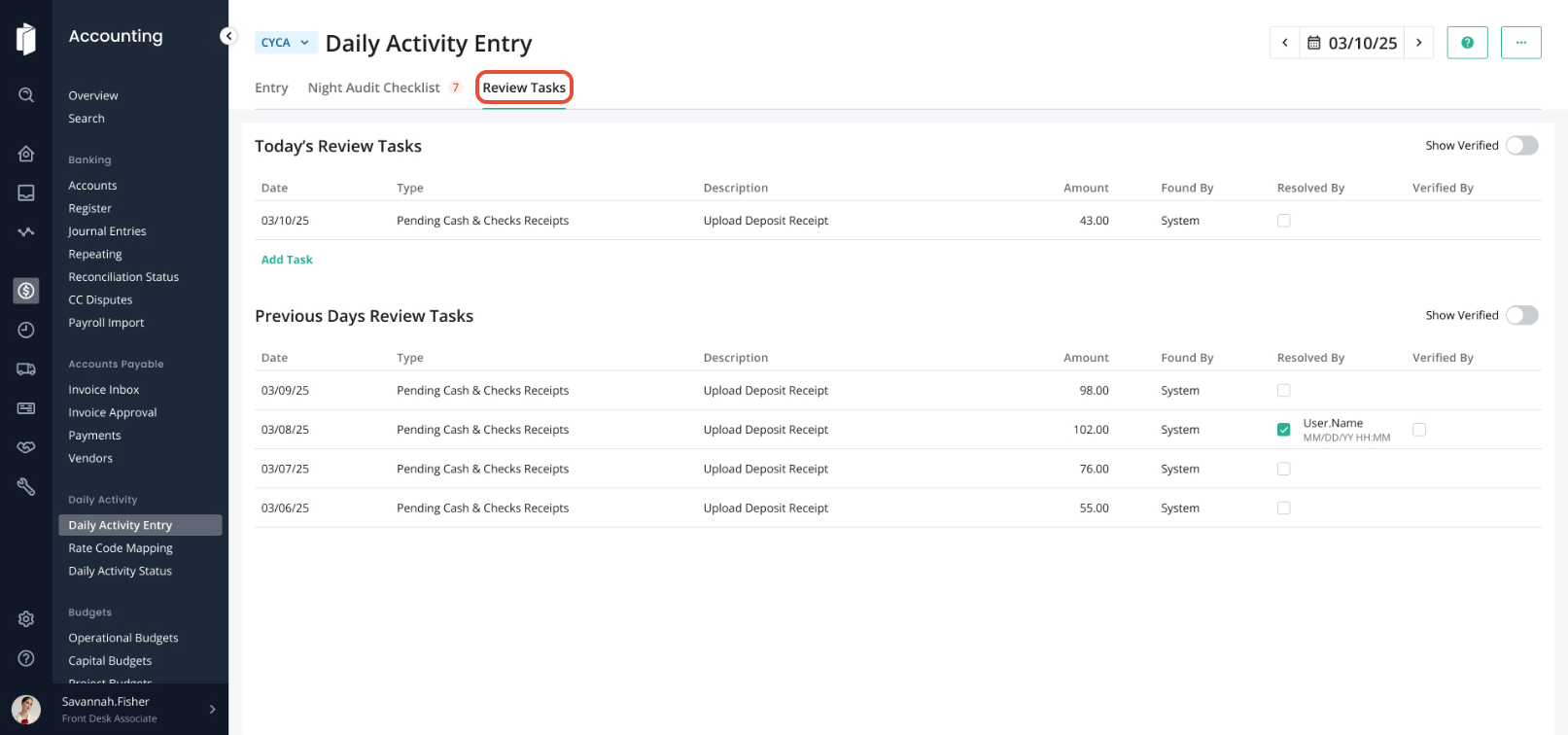
Entering a task through the Review Tasks tab:
- Select the Accounting module
- Navigate to Daily Activity > Daily Activity Entry
- In the top left of the screen click on the Select button
- From the drop-down menu, select the property E/HID
- Select the appropriate Date (system will default to the oldest unapproved day)
- In the Daily Activity screen, select the Review Tasks tab
- To enter a new Task, click on the Add Task button
- Enter the required data and select the Save button
How to change the status of a Review Task to Resolved or Verified:
- Follow the steps detailed above to access the Review Tasks tab
- Click anywhere on the Task you are planning to update
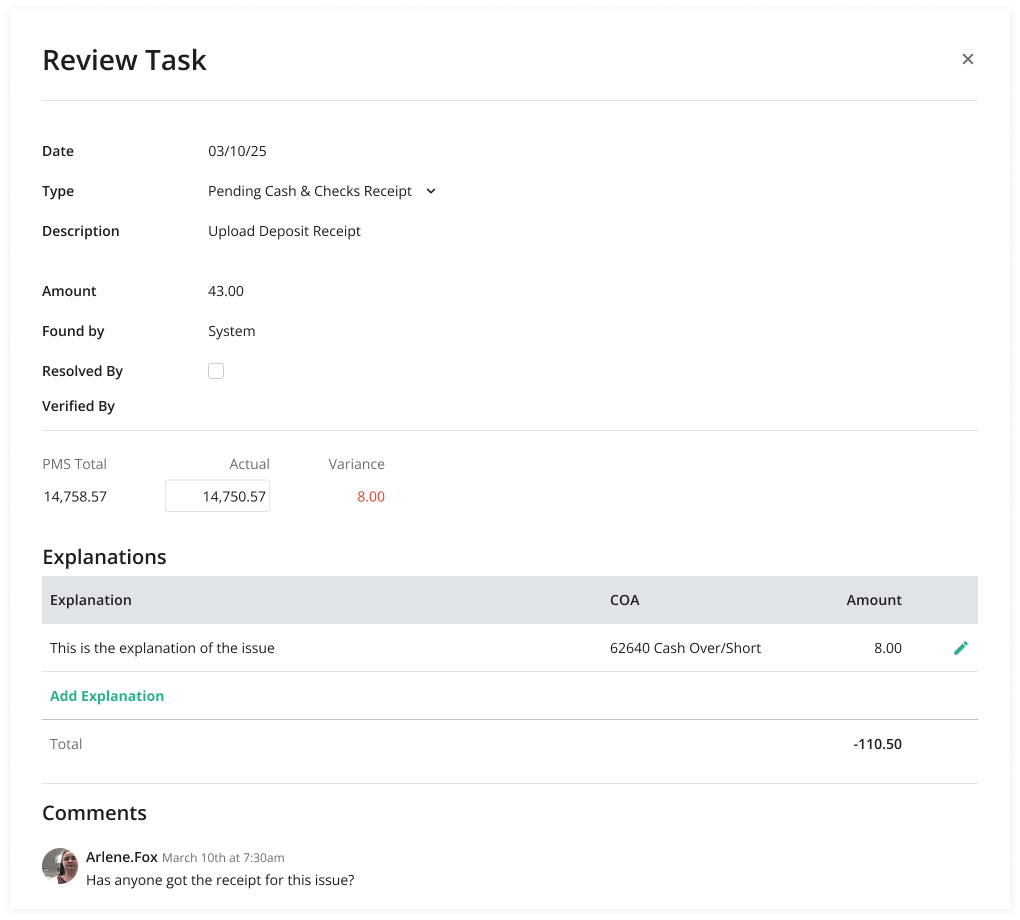
- The Review Task screen will open (shown below)
- If the issue has been resolved, enter a summary of the resolution in the Add Explanation section, and check the Resolved box.
- If the issue has been resolved and the resolution verified, check the Verified box (add comments, if necessary). Note: The Resolved and Verified options will be visible based on role permissions
- The Daily Activity Issues report, which lists all pending issues, can be generated from the Run Reports option. Note: Access to the Daily Activity Issues report is based on Role Permissions.
Files
The Files function as it relates to the Daily Activity Entry is important because it allows the property to electronically store the PMS daily closing reports used to generate the Daily Activity Entry and to reconcile the daily activity for the property. This allows for other users to easily locate information that may need to be referenced for this date.
How to View Documents:
- In order for documents to be uploaded, they must be scanned and saved electronically or printed as a PDF file and saved electronically
- Navigate to Daily Activity > Daily Activity Entry
- On the top left of the screen click on the Select button
- From the drop-down menu, select the property E/HID
- Select the appropriate Date (system will default to the current date)
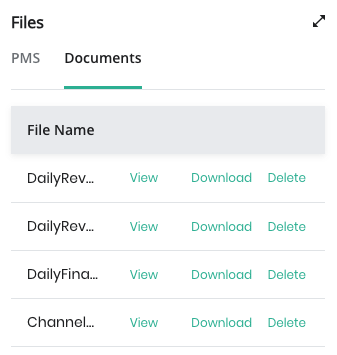
- In the Daily Activity screen locate the Files section in the bottom right of the page (shown below). The tab for documents is where reference documents you may need for this date will be stored. For more information on how to add documents to this section, see the Night Audit Checklist instructions below.
Night Audit Checklist
The Night Audit Checklist is a tool developed to assist the Night Auditor with ensuring all required tasks related to the completion of the Daily Activity Entry are complete.
How to access and complete the Night Audit Checklist:
- Select the Accounting module
- Navigate to Daily Activity > Daily Activity Entry
- In the top left of the screen click on the Select button
- From the drop-down menu, select the property E/HID
- Select the appropriate Date (system will default to the oldest unapproved day)
- Select the Night Audit Checklist tab
- The Night Audit Checklist screen will open
- The Night Auditor should select the box next to each task as it is completed
- Then, upload any relevant reference documents in the documents section by dragging & dropping, or browsing.
Complete Entry
The Complete Entry button is designed to ensure a Manager reviews the Daily Activity Entry, the Bank Deposit Balance, and any Review Tasks on a daily basis. The property will not be able to close the day and move on to the next day until the Complete Entry button has been clicked.
Was this article helpful?
That’s Great!
Thank you for your feedback
Sorry! We couldn't be helpful
Thank you for your feedback
Feedback sent
We appreciate your effort and will try to fix the article