When new Charge Codes or Rate Codes are added to the PMS, the item must be mapped to an Inn-Flow Chart of Account (COA) so that it imports automatically in the future. See the instructions below on how to map new Charge and Rate Codes.
Charge Code - A code in your PMS system that defines or categorizes a transaction or individual charge, i.e. a Pet Fee or Occupancy Tax Adj.
Rate Code - A code that defines and categorizes an individual room night's revenue typically based on its booking origin like Expedia, or Booking.com; its negotiated rate like the government, corporate, AAA, etc; or locally negotiated rates such as local events. Rate Codes provide a clear picture of where your booked business is coming from. These are usually found on your PMS segmentation report.
Map a new Charge Code
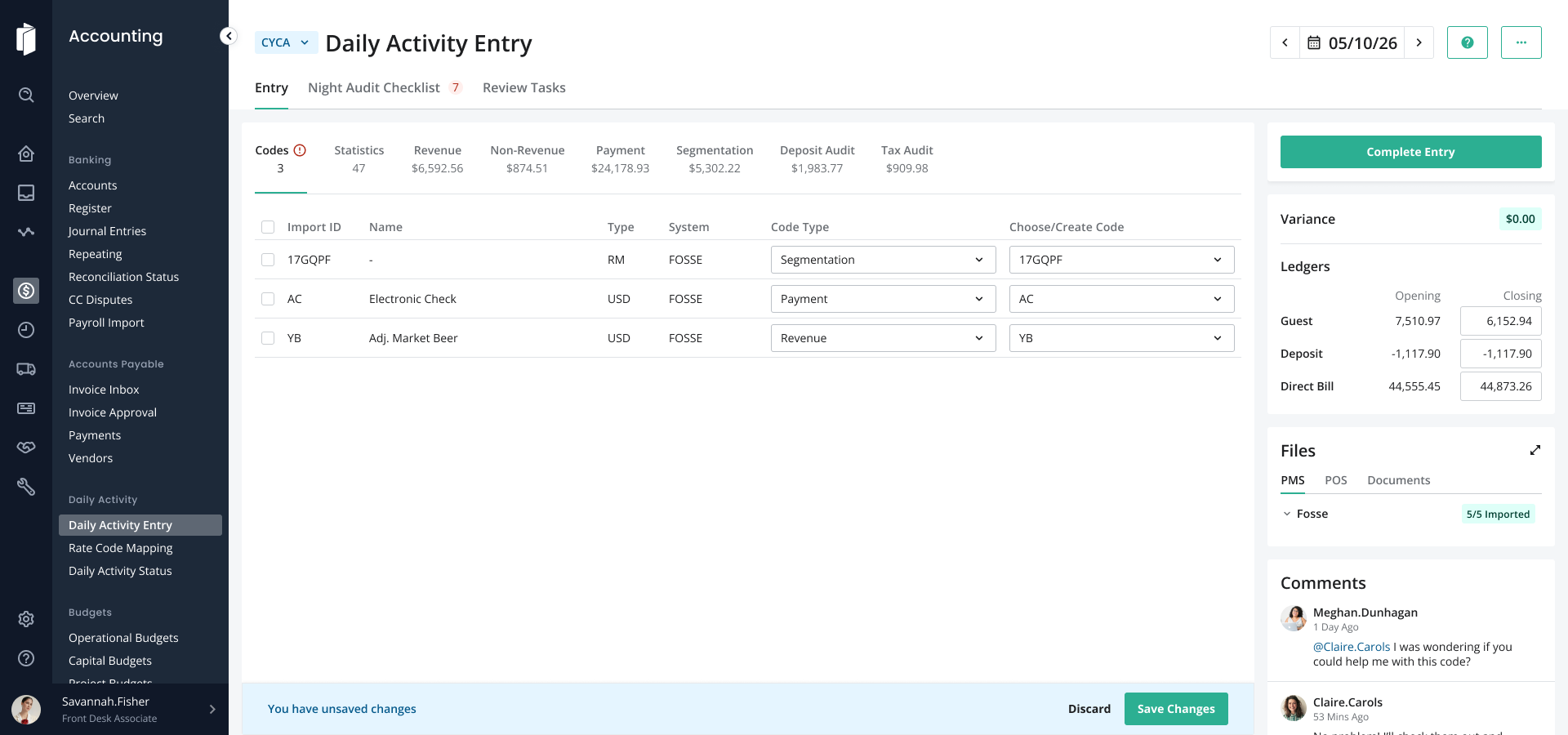
Go to Accounting > Daily Activity Entry > Click on the Codes tab that shows a notification, indicating new codes need to be added.

New Charge Codes that need to be mapped will be displayed by Item Name. Select the Type, then Choose/Create Code:

If the Code exists in the dropdown menu already, select it to link the code. If it does not already exist, select Create Code.
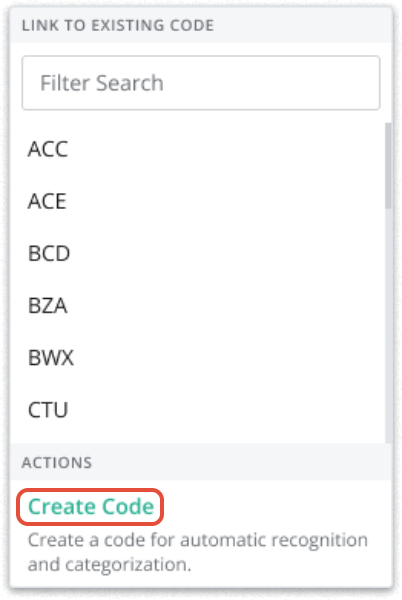
To Create a new code, fill in the details as shown in the screenshot below and Save.
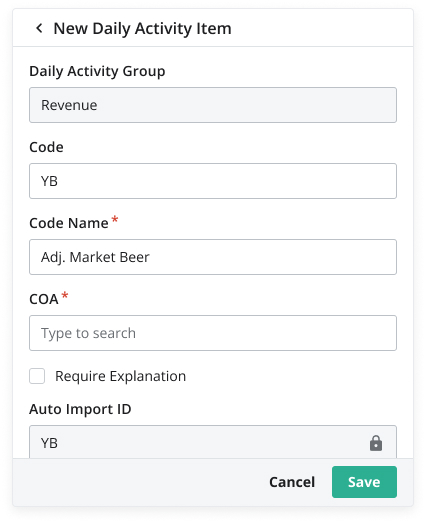
Required Fields:
- Daily Activity Group - this is automatically filled based on the selection in the Type dropdown menu.
- Code - The item code will be found on your PMS Reports. Using the correct Item code or identifier allows you to easily find and enter the Daily Activity when that item is used.
- Code Name - this is automatically filled based on the item name.
- COA No. or COA Name - If you are unsure of the proper COA selection, contact your Accounting or Corporate team for further guidance.
- Note: Items in the Payment Daily Activity Group will be limited to only Payment type COA's such as Cash & Checks, Visa, or Wire Transfer, or a Liability COA. Expense or Revenue COA's cannot be utilized for an item within the Payments section.
If you are not familiar with PMS mapping, click here to learn more: PMS Mapping
Map a new Rate Code
Go to Accounting > Daily Activity Entry > Click on the Codes tab that shows a notification, indicating new codes need to be added.

A new Rate Code will typically be displayed as a Letter or combination of letters and numbers that represents the Market Code.

Click on the line for the new rate code. In the Type dropdown, select Segmentation.
In the Mapping Item, select the appropriate code if it matches. If it does not already exist, select Create Code.
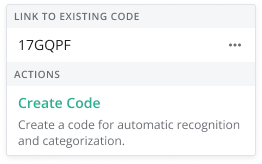
To Create a new code, fill in the details as shown in the screenshot below, and Save.
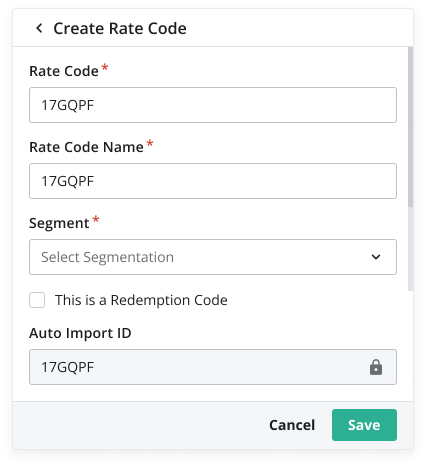
Required Fields:
- Rate Code - this is automatically filled based on the Market Code.
- Rate Code Name - the Rate Code name usually matches the Rate Code. Using the correct Item code or identifier allows you to easily find and enter the Daily Activity when that item is used.
- Segment - If you are unsure of the proper segmentation selection, contact your Accounting or Corporate team for further guidance.
- Redemption Code - If this is a FOSSE redemption code, check the box. For more information on this feature, see article: FOSSE: Mapping MBV Redemptions to Import in Segmentation
If you are not familiar with Rate Code Mapping, click here to learn more: Rate Code Mapping
Once you have mapped all codes, Save Changes on the Codes tab.
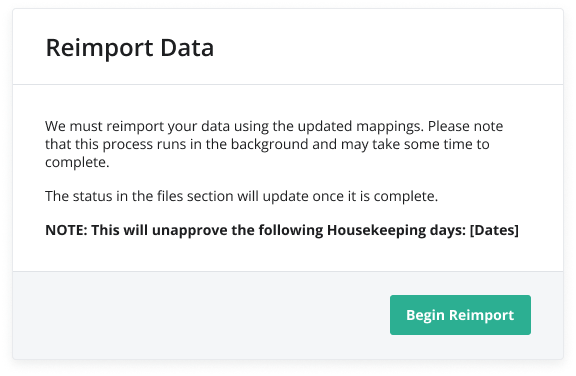
Once the new mappings have been saved, you will receive a message to let you know that the data is re-importing and will populate when it has finished processing.
Was this article helpful?
That’s Great!
Thank you for your feedback
Sorry! We couldn't be helpful
Thank you for your feedback
Feedback sent
We appreciate your effort and will try to fix the article