Data Import Rules can be configured to make importing your Credit Card Statement an easy process, mapping items from your statement directly to a Vendor or Chart of Account.
To set up rules, navigate to Accounting > Data Import Rules.
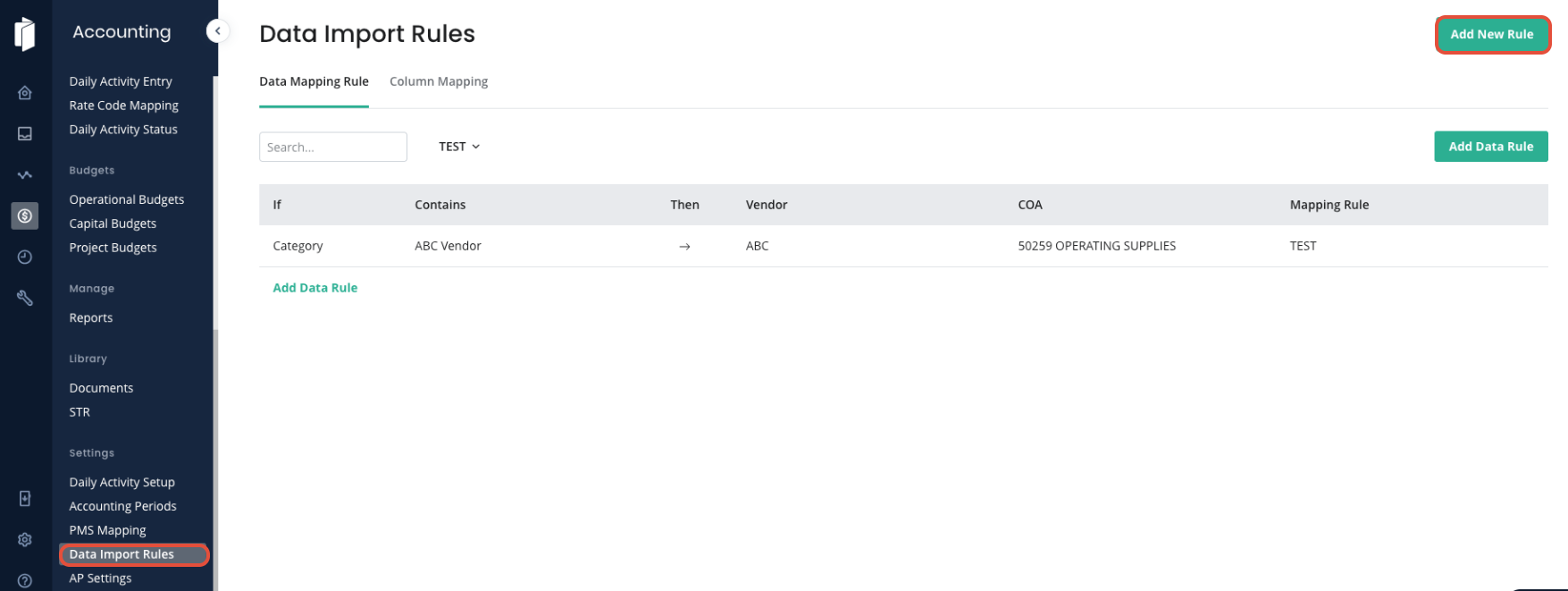
Step 1: Add New Rule
In the top right corner, click Add New Rule. This creates a Mapping Rule, which is the first step to configure the import for your Credit Card statement. For Example, you would want to set up an Amex Rule, and a Chase Rule if you have two types of cards, with two statements that are formatted differently.
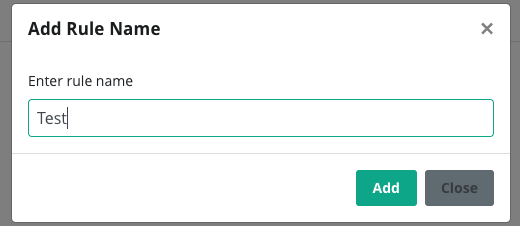
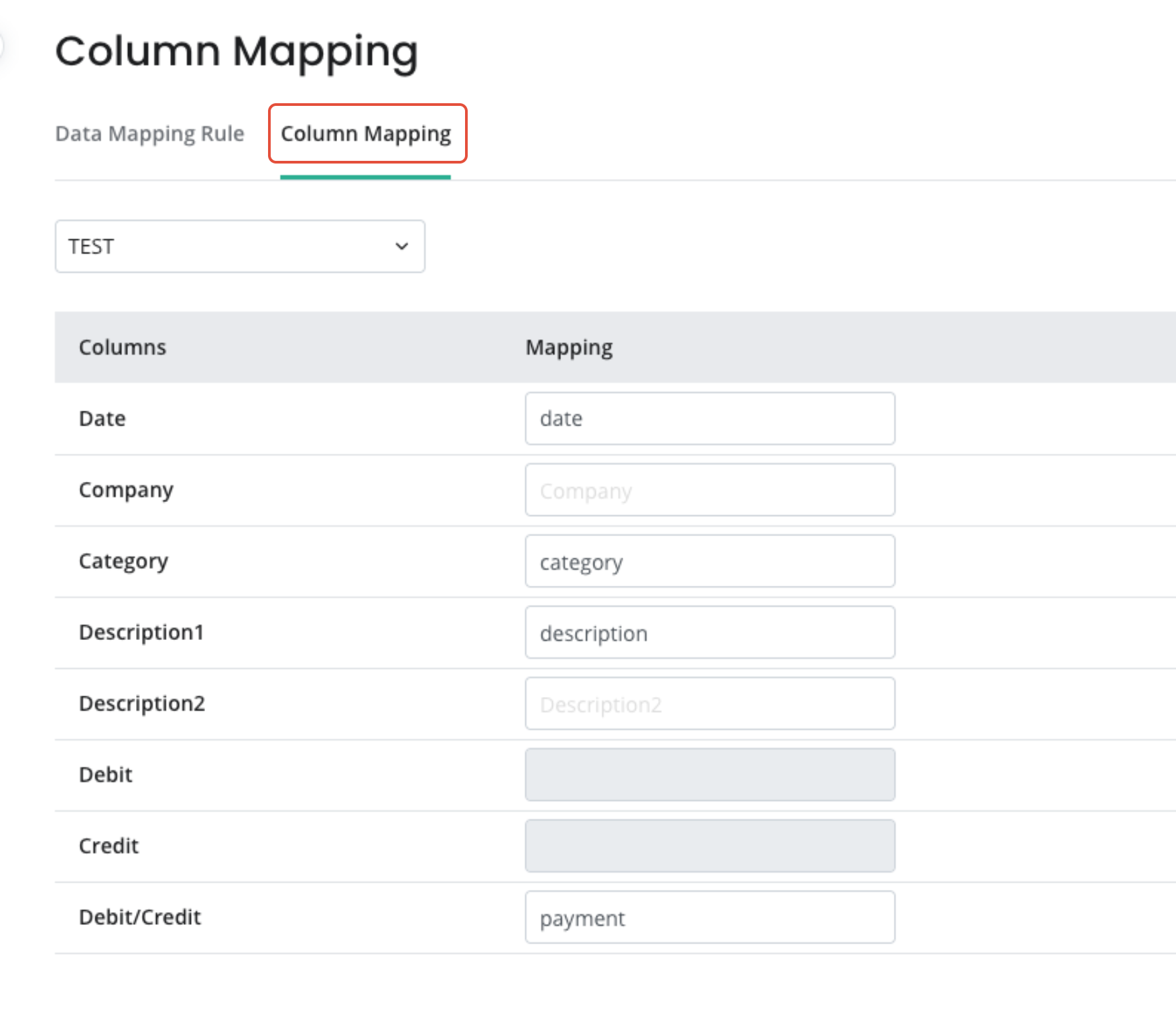
Step 2: Column Mapping
Then, switch to the Column Mapping tab. Use your excel statement from your Credit Card processor for this Rule, and enter the HEADER name in the mapping page next to the Inn-Flow column name. This teaches Inn-Flow to read your statement headers and apply them to the correct column for import.
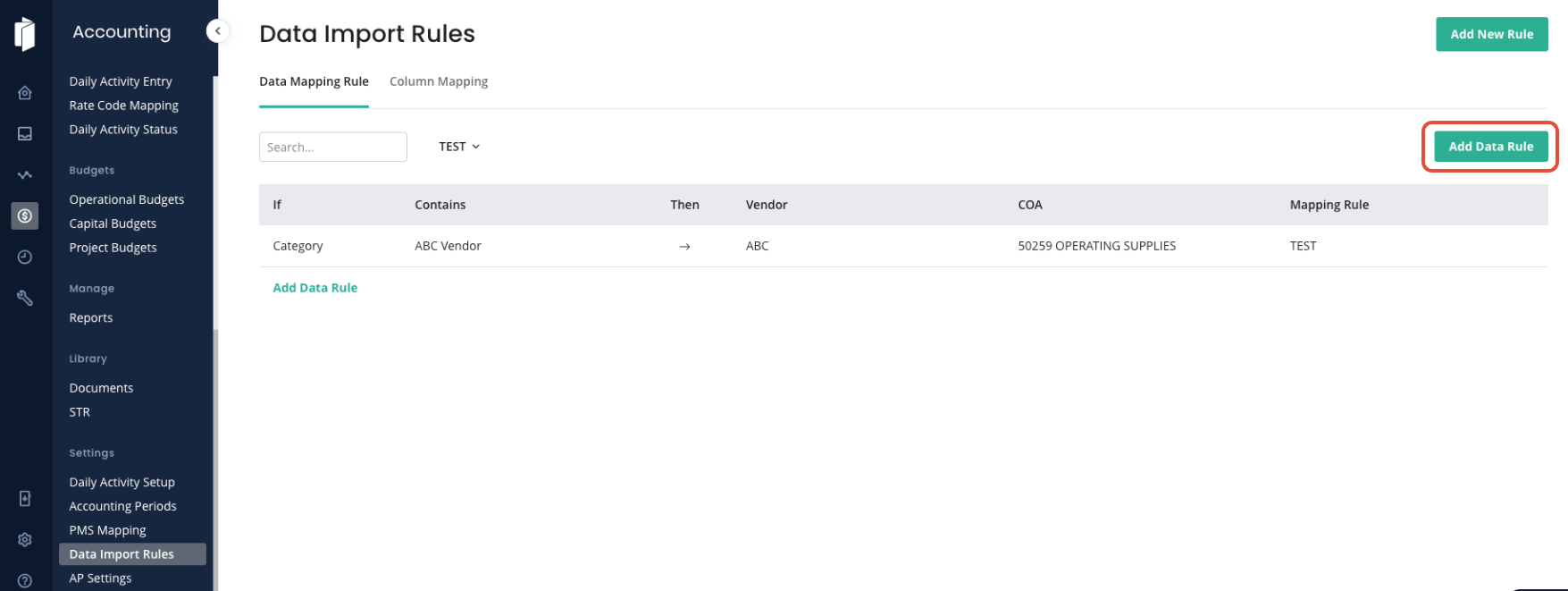
Step 3: Add Data Mapping Rules
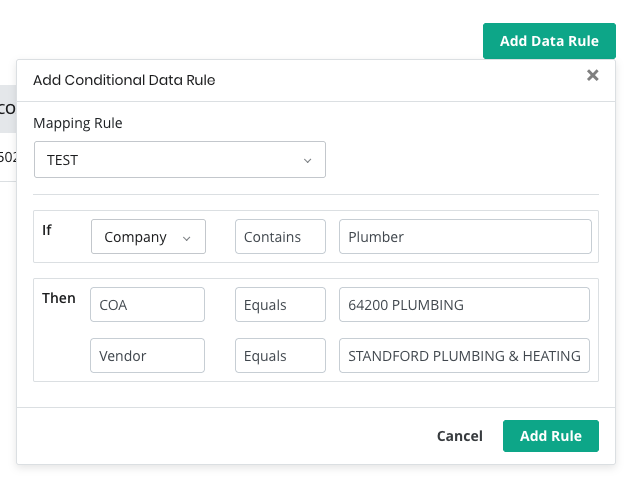
Return to the Data Mapping Rule tab. On the right, click on Add Data Rule. Select the correct Mapping Rule (from Step 1) from the dropdown. Then, teach Inn-Flow what on your Credit Card Statement to read, and then how to import it.
In the example below, we're configuring the import to:
1) Read the excel Credit Card Statement (imported via the Register page)
2) When the company column (set in Step 2) holds the word Plumber then:
The COA will automatically be assigned as 64200
and, the Vendor will be selected as Standford Plumbing & Heating
Continue adding rules for all common items that you regularly see on your Credit Card Statement. As more rules are added, the Import of your Credit Card statement will include more pre-mapped items, leading to a quicker and more accurate process each month.
Note: You do not have to select both a COA and a Vendor within data rules. You are able to map a keyword to only a vendor if the COA may change each transaction. Also, you can map a COA but not a Vendor if the vendor may change. It is not a requirement to map both.
Was this article helpful?
That’s Great!
Thank you for your feedback
Sorry! We couldn't be helpful
Thank you for your feedback
Feedback sent
We appreciate your effort and will try to fix the article