Accounts Payable in Inn-Flow Procurement now has an Analytics area with three views: Ask AP, where you type a plain-language question and get an answer with a chart or table; Spending Analytics, which shows where your money is going by GL code, property and vendor; and AP Aging, which shows what is outstanding, what is overdue and for how long. This article walks through each view and the questions it answers.
What this feature does
Until now, finding out "how much do we owe and how late is it?" meant filtering the invoice list and adding things up yourself. The new Analytics submenu under Accounts Payable does that work for you.
From it you can:
Ask AP a question in plain language - for example "What is our total overdue amount?" - and get a written answer with the figures, a visual you can switch between chart types, and a link to drill through to the invoices behind it.
See spend by GL code, property or vendor - as a trend over time, a treemap or a table - and compare it with budget.
Track aging - total outstanding, overdue dollars, average days overdue and average time to pay, broken down by aging bucket (On time, 1–30, 31–60, 61–90, 90+ days), by vendor or by property, with a payment forecast and a downloadable report.
All three views share the same Period, Properties and Vendors filters, so you can look at one hotel or your whole portfolio, one vendor or all of them.
Good to know Analytics is read-only. It reports on invoices already in Accounts Payable; you approve, schedule and pay invoices from the AP invoice list as before. Every answer from Ask AP is generated by AI and carries the note "AI-generated - it can make mistakes. Verify figures before acting." Use the drill-through links to check the underlying invoices before you act on a number. Figures reflect invoices as they stand in AP right now - their status, due date and amount - so the same question can give a different answer tomorrow once invoices are paid or new ones arrive. |
Where to find it
Open Procurement › Accounts Payable and choose Analytics from the submenu. Three tabs are available: Ask AP (the overview), Spending Analytics and AP Aging. The filters at the top apply to whichever tab you are on.
Spending Analytics — where the money goes
The Spending Analytics tab shows what you have spent through AP over the selected period.
Panel | What it shows |
Total spend | A trend of AP spend over time for the selected period, properties and vendors. |
Spend by GL code / Property / Vendor | Switch the grouping to see which accounts, hotels or suppliers account for the spend. View it as a treemap, a data table or another chart type. |
Compare to budget | A toggle that overlays the GL budget on the spend figures so you can see which codes are over or under. |
Cost at Hand (last 30 days) | Linked to the Inventory module: the value of stock currently on hand, so you can see purchased cost alongside what is still in storage. |
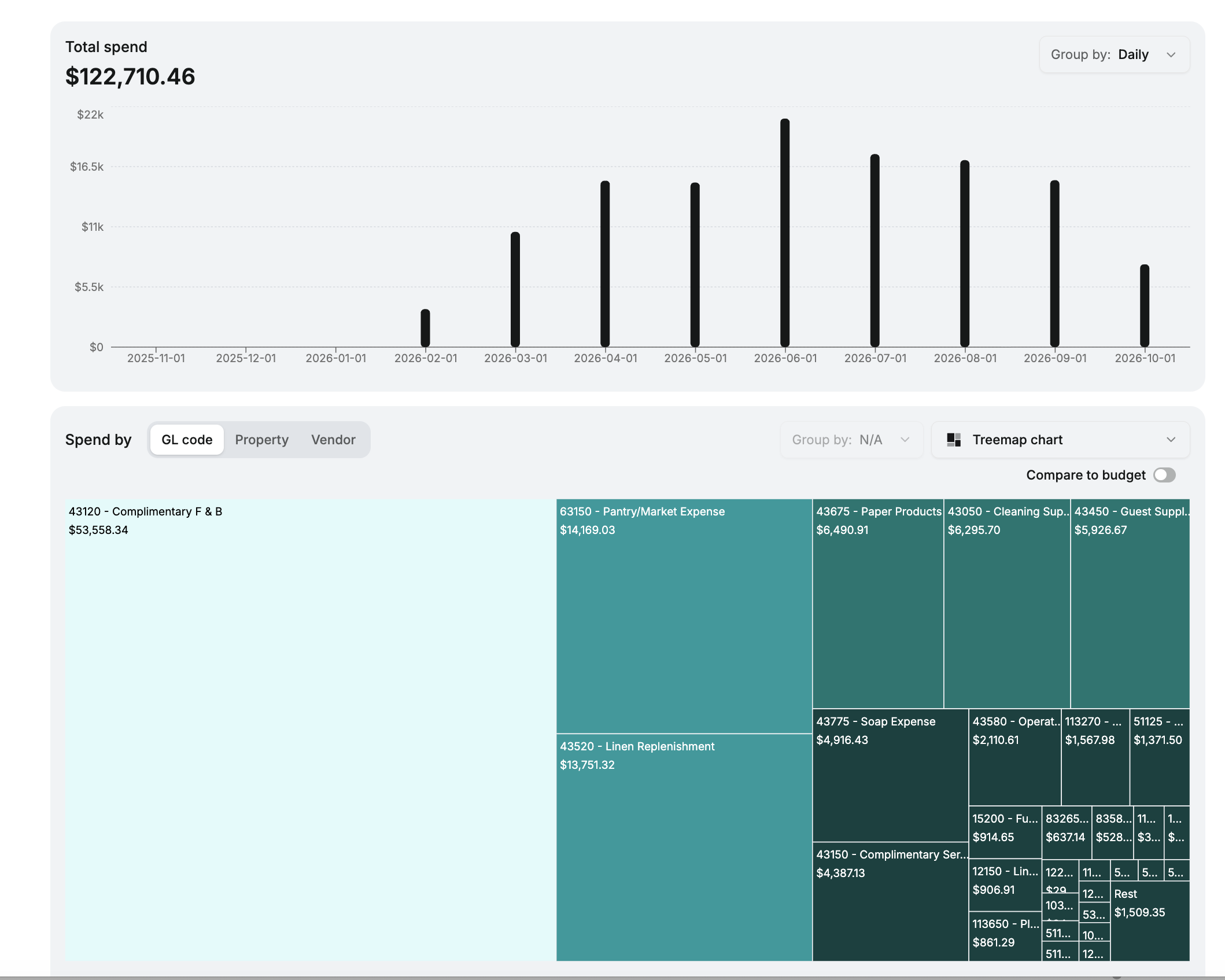
Figure 1. Spending Analytics: total spend for the period ($24,057.22) grouped by day, and spend by GL code as a treemap — Complimentary F & B and Petty Cash are the two largest blocks. The Compare to budget toggle sits above the treemap.
Ask AP — ask a question, get an answer
The Ask AP tab opens with a question box and six suggested starter questions. Click one, or type your own.
Starter question | What you get back |
What is my total payables balance and how much is overdue? | Headline cards for total outstanding and overdue amounts. |
How is my open AP aged across buckets? | A breakdown by aging bucket - On time, 1–30, 31–60, 61–90 and 90+ days - usually shown as a donut. |
Which vendors hold the most past-due balance? | A ranked list of vendors by outstanding balance, with the overdue portion of each. |
Which property carries the most overdue balance? | A ranked list or table of properties by overdue amount. |
How many invoices are pending approval versus ready to pay? | A side-by-side view of invoices waiting for approval and invoices approved for payment. |
How much is coming due over the next few months? | Amounts due in the upcoming period, by due date. |
Step 1 — Ask the question
Click a suggested question, or type a question of your own into the box — for example "How much do we owe Sysco across all properties?" — and submit it. The question runs against the invoices that match the Period, Properties and Vendors filters you have set.
Step 2 — Read the answer
Each answer has three parts: a short AI summary stating the figures in words, with a chip showing the date range it covers, a visualization chosen to suit the answer (cards for a couple of headline numbers, a donut for shares of a total, a ranked list for top vendors or properties, a table, a stacked chart or a treemap), and the AI disclaimer. If a different view would be clearer, use the switch above the visual to change it - Table, Ranked, Stacked, Donut or Treemap.
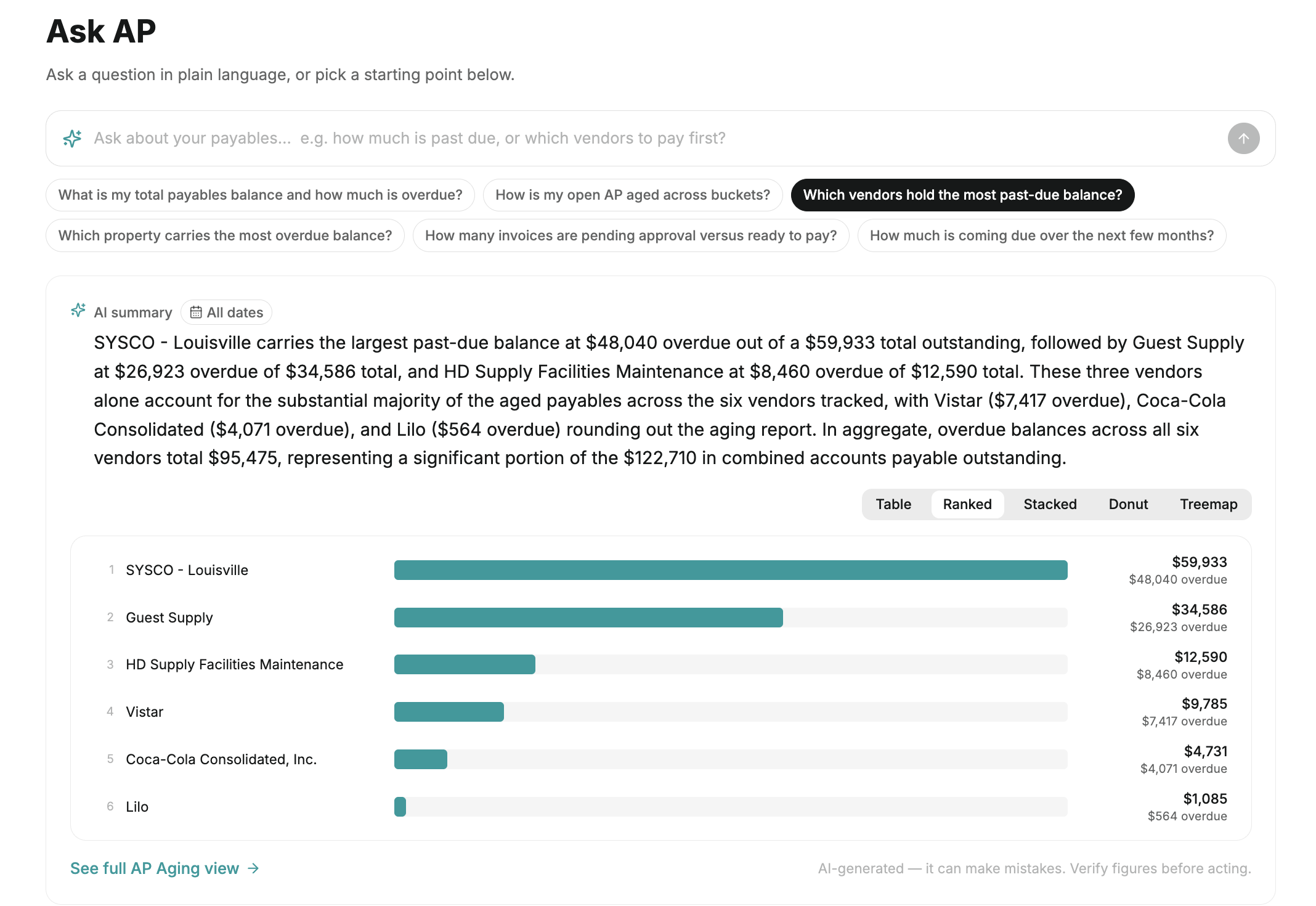 Figure 2. Ask AP after clicking "Which vendors hold the most past-due balance?": the AI summary names the top vendors and their overdue amounts, and the Ranked view lists them with outstanding and overdue balances. The Table / Ranked / Stacked / Donut / Treemap switch sits above the visual.
Step 3 — Refine or drill through
Click Edit question to change the wording and run it again - for example, narrowing "most past due vendors" to a single property. To see the invoices behind a number, use the drill-through link on the answer; it opens the full aging view or the filtered invoice list so you can verify the figures and act on them.
Writing a good question Ask one thing at a time: "What is overdue by more than 60 days?" works better than "Show me everything overdue, by vendor, and what's due next week." Name what you want sliced by - vendor, property, GL code, aging bucket or status - and the answer will be grouped that way. Set the filters first. Ask AP only looks at the period, properties and vendors you have selected. |
AP Aging - what is outstanding and how late
The AP Aging tab is the full report behind the aging questions in Ask AP.
KPI summary
Four cards across the top: Total outstanding (with the invoice count), Overdue (amount, invoice count and the share of your invoices that are overdue), Average overdue time and Average time to pay. The last one is a useful early warning for vendor-relationship risk - if it creeps up, invoices are sitting longer before they are paid.
Aging breakdown
Outstanding invoices are grouped into buckets by how far past their due date they are: On time, 1–30, 31–60, 61–90 and 90+ days. Switch the breakdown between dollar amount and invoice count. Further down, Open balance by due date shows when the outstanding amount falls due, and the Payment forecast projects what you will need to pay in the coming weeks.
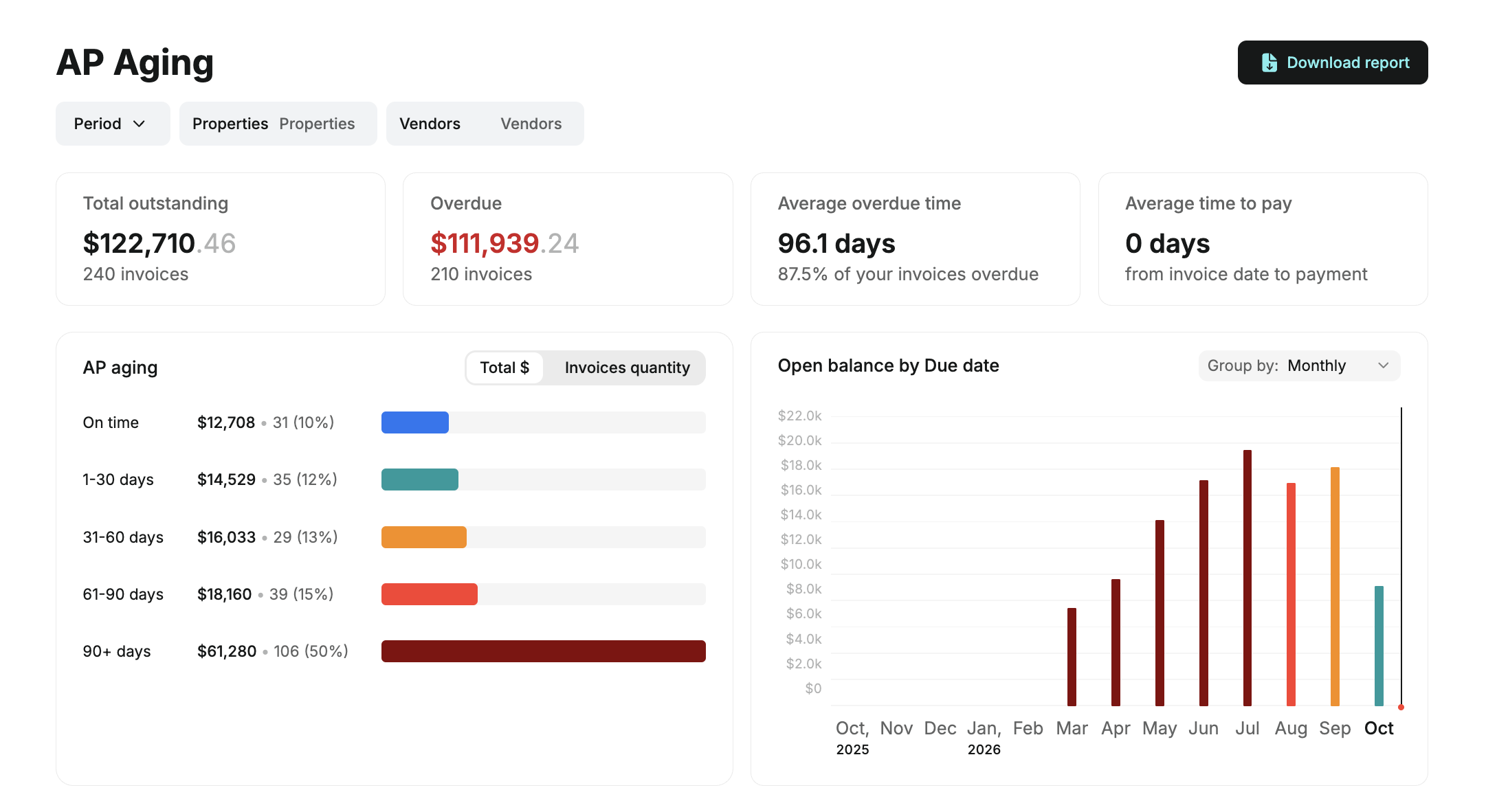 Figure 3. AP Aging: the four KPI cards (Total outstanding, Overdue, Average overdue time, Average time to pay), the aging breakdown by bucket with the Total $ / Invoices quantity switch, and Open balance by due date grouped monthly. Download report is top right.
Aging by vendor or property
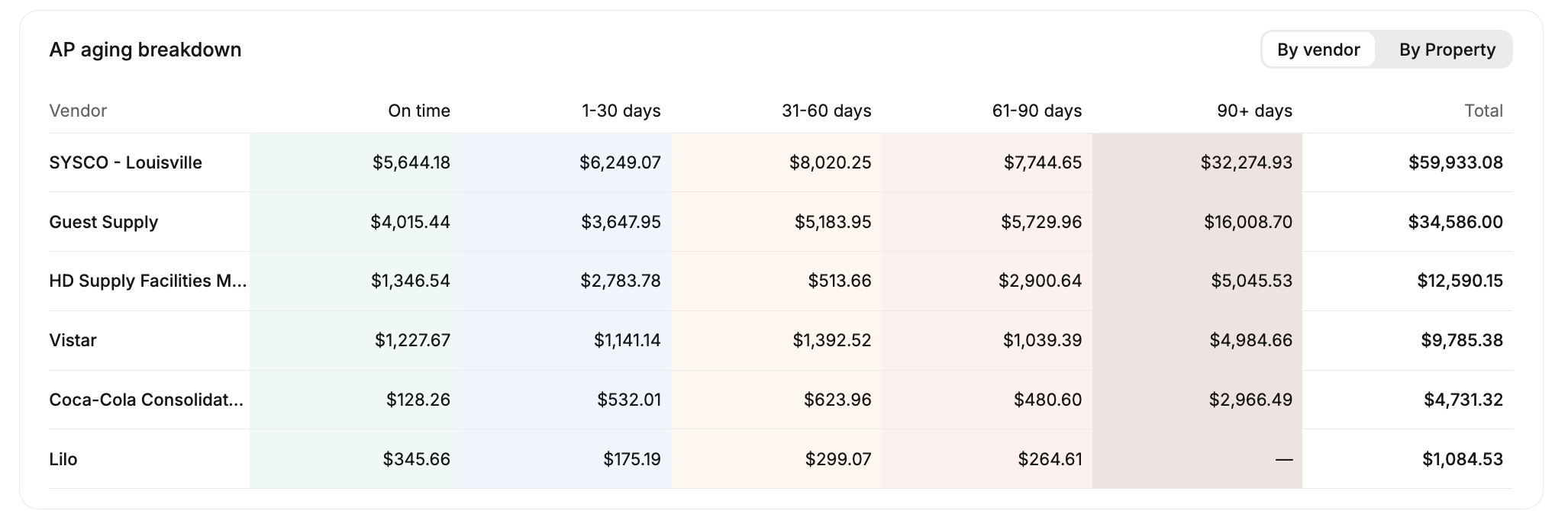
The AP aging breakdown table groups the outstanding balance by vendor or by property — switch with the toggle at the top right of the table. Each row shows the amount in every aging bucket, shaded from green (on time) to dark red (90+ days), and a total, so you can see at a glance which supplier or which hotel is carrying the oldest balances. Use Download report at the top of the page to export the aging report.
Was this article helpful?
That’s Great!
Thank you for your feedback
Sorry! We couldn't be helpful
Thank you for your feedback
Feedback sent
We appreciate your effort and will try to fix the article