A step-by-step guide to linking your Amazon Business account with Inn-Flow Procurement through the Amazon Ordering API.
Before You Begin
You'll need Admin access to your Amazon Business account. Have your login credentials ready.
If you plan to use separate payment cards per property, you'll need to repeat this process and create one group per property.
Step 1: Create a New "Group" in Your Amazon Business Account
- Go to your Amazon Business settings.
- Create a group:
- Navigate to User management > Groups.
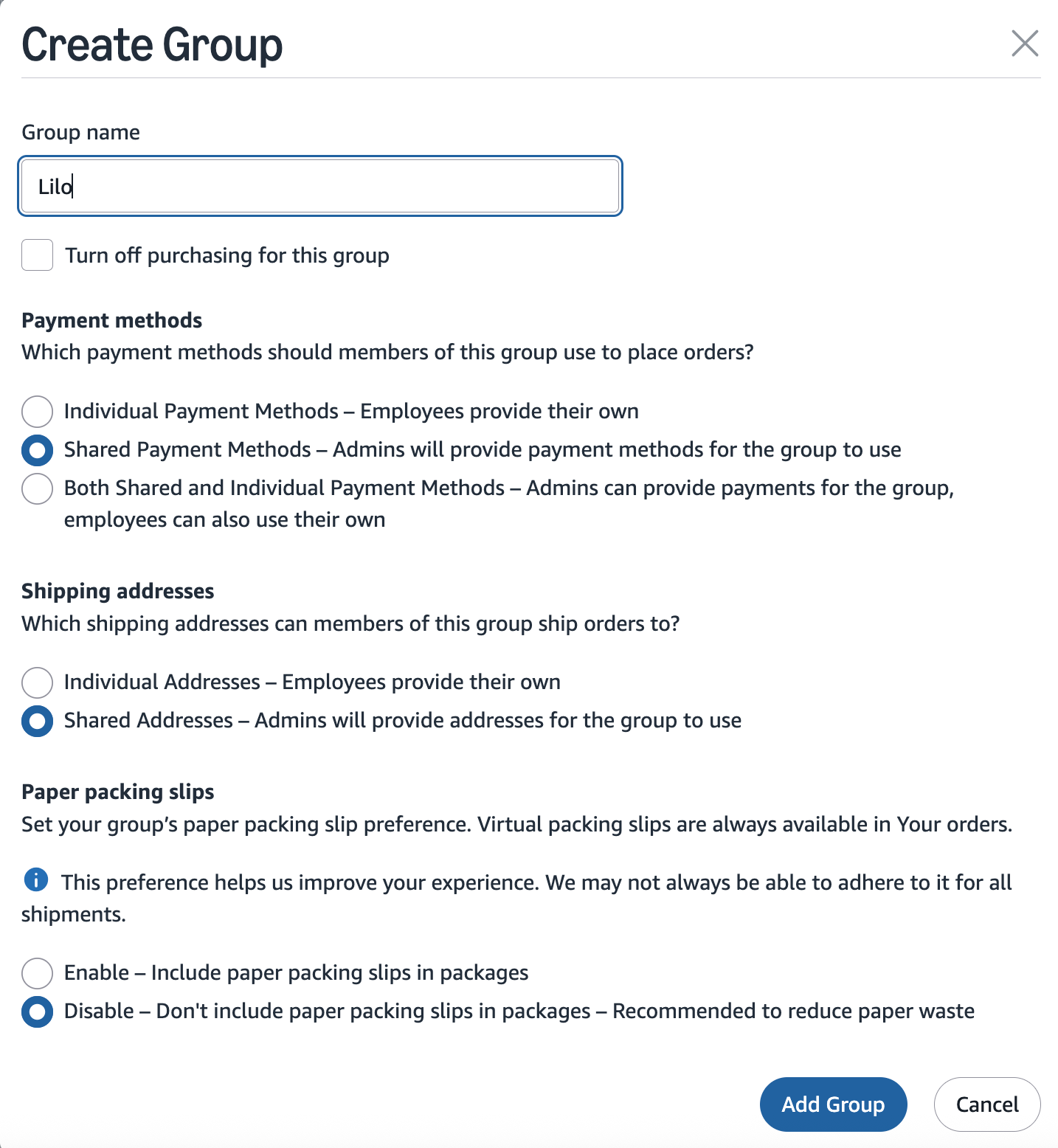
- Select Add Group.
- In the Group name text box, enter any name you like. In this example we will use "Lilo".
- Under group settings, enable both Shared payment method and Shared shipping addresses. Both are required for the group to work with the Ordering API.
- Select Add Group. The group is added to the list.
Step 2: Configure the Purchasing System
- Click on the group name you just created.
- Scroll down to System integrations > Configure purchasing system.
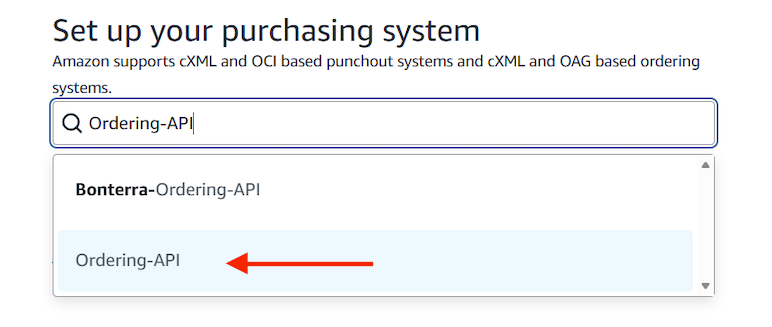
- On the next screen, use the search bar to search for "Ordering-API".
- Select "Ordering-API".
- A 'System Login' and 'Password' will be generated.
- Leave them as they are and click Save.
Step 3: Save Your Group Identifier and Set Your Default Payment Method
- After clicking Save, the next screen shows the "Ordering-API punchout connection to Amazon Business" details.
- Copy the "From identity" in cXML (Group ID) value and save it — you'll need it later to connect your Amazon account in Inn-Flow Procurement. a. "From identity" in cXML = Group ID
- Set up your default payment method:
- Scroll down to Default payment method > Add a payment method.
- Click Add payment method.
- Select the applicable option: credit or debit card, personal checking account, or business checking account.
- Follow Amazon's instructions to add your preferred payment method.
Important: Each group supports only one payment method. If you need to use different credit cards (for example, a separate card per property), create a separate group for each card.
Step 4: Switch the Purchasing System from Test Mode to Active Mode
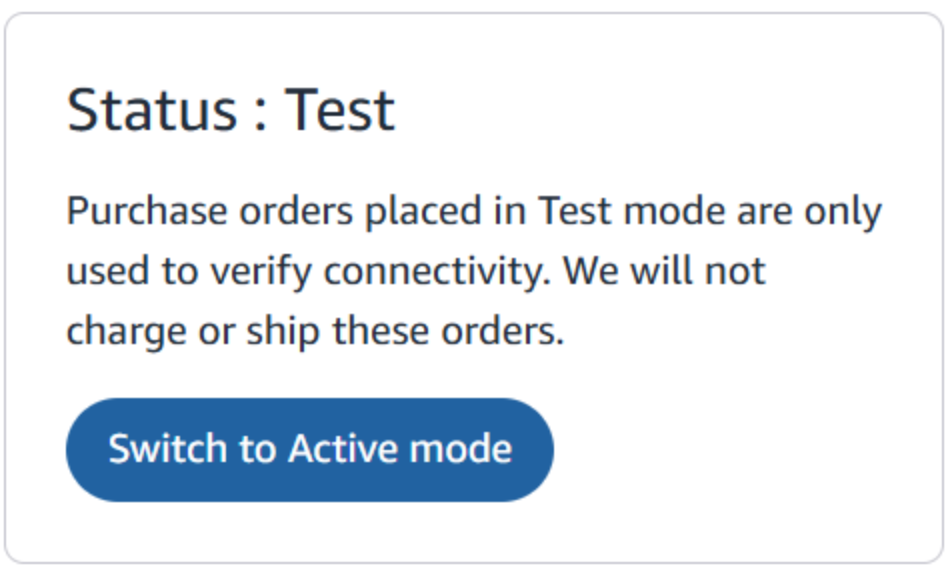
- After adding your payment method, scroll up and find the Status box — it will be in "Test" mode.
- Select Switch to Active mode.
Step 5: Add a User to the Group
Add at least one user with the Buyer role to the group, including your admin user (the one you're using to do this setup), who will need the Buyer role in addition to Admin.
- Go back to your Amazon Business settings > Users. The Users menu lists all users currently created in your account.
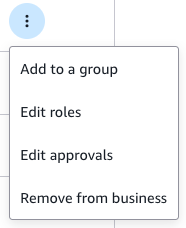
- Click the three dots next to the user > "Add to a group".
- Search for the group you just created and select it.
Step 6: Connect Your Amazon Business Account to Inn-Flow Procurement
- Go to Inn-Flow Procurement's Amazon Business page.
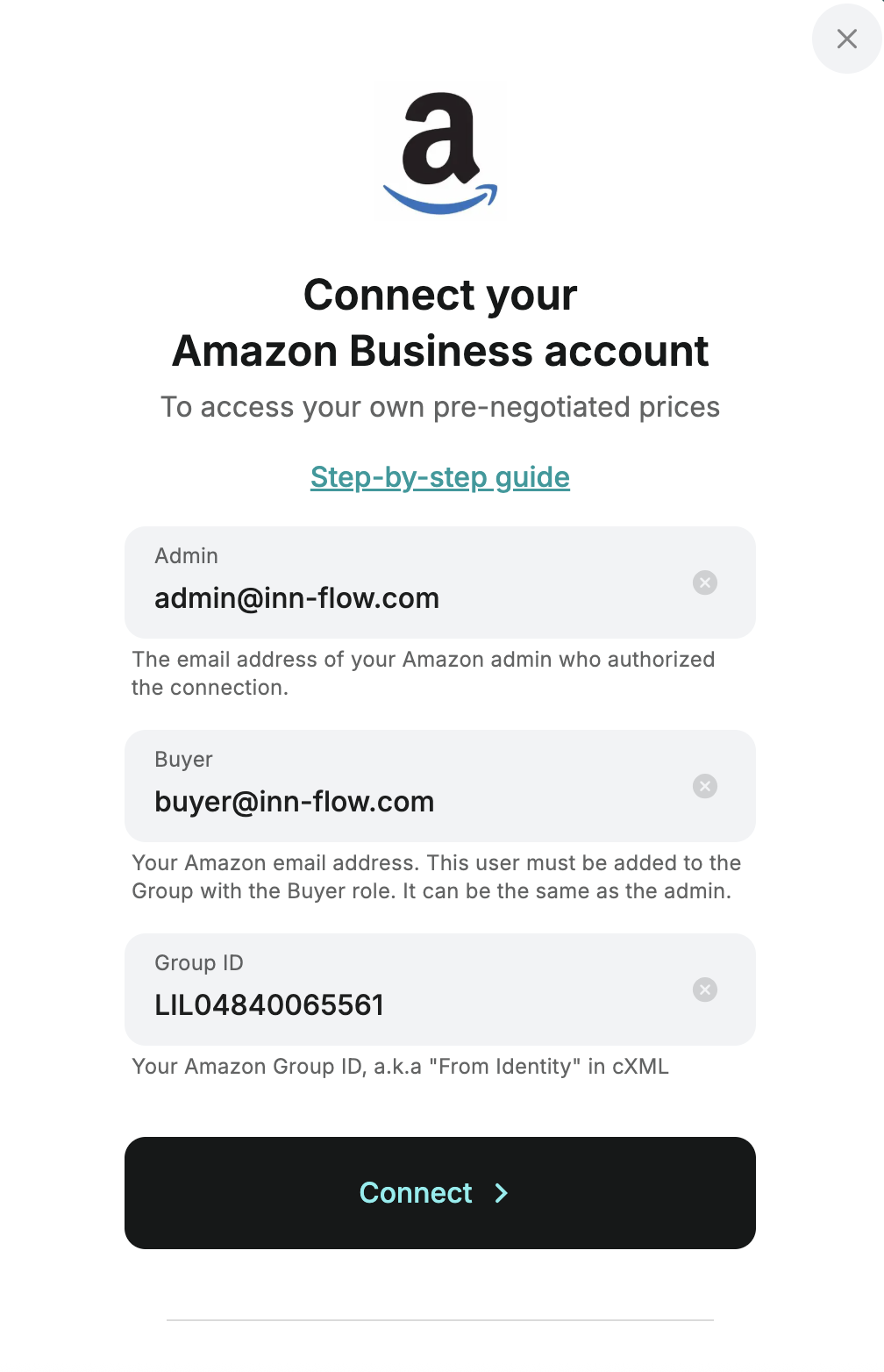
- Click Connect this vendor and enter the following credentials:
a. Admin — The email address of your Amazon admin who authorized the connection.
b. Buyer — Your Amazon email address. This user must be added to the Group with the
Buyer role. It can be the same as the admin.
c. The Group ID generated in Step 3.
i. “From Identity” in cXML = Group ID
After clicking Connect, you’ll be redirected to the Amazon website to confirm the connection.
You're All Set
Your Amazon Business account is now connected to Inn-Flow Procurement.
Was this article helpful?
That’s Great!
Thank you for your feedback
Sorry! We couldn't be helpful
Thank you for your feedback
Feedback sent
We appreciate your effort and will try to fix the article
