A Balance Forward Variance in Daily Activity indicates that the PMS data imported into Inn-Flow does not fully align with the totals in Daily Activity. This is almost always caused by one of the following:
- A new PMS code that has not been mapped
- A code with a different naming convention than expected
- A code the system failed to pick up during import
Use the steps below to identify and resolve the issue:
Step 1: Re-Import the Daily Activity Data
Before investigating further, always start by selecting Reimport Data within the triple-dot menu of Daily Activity if the button is available.
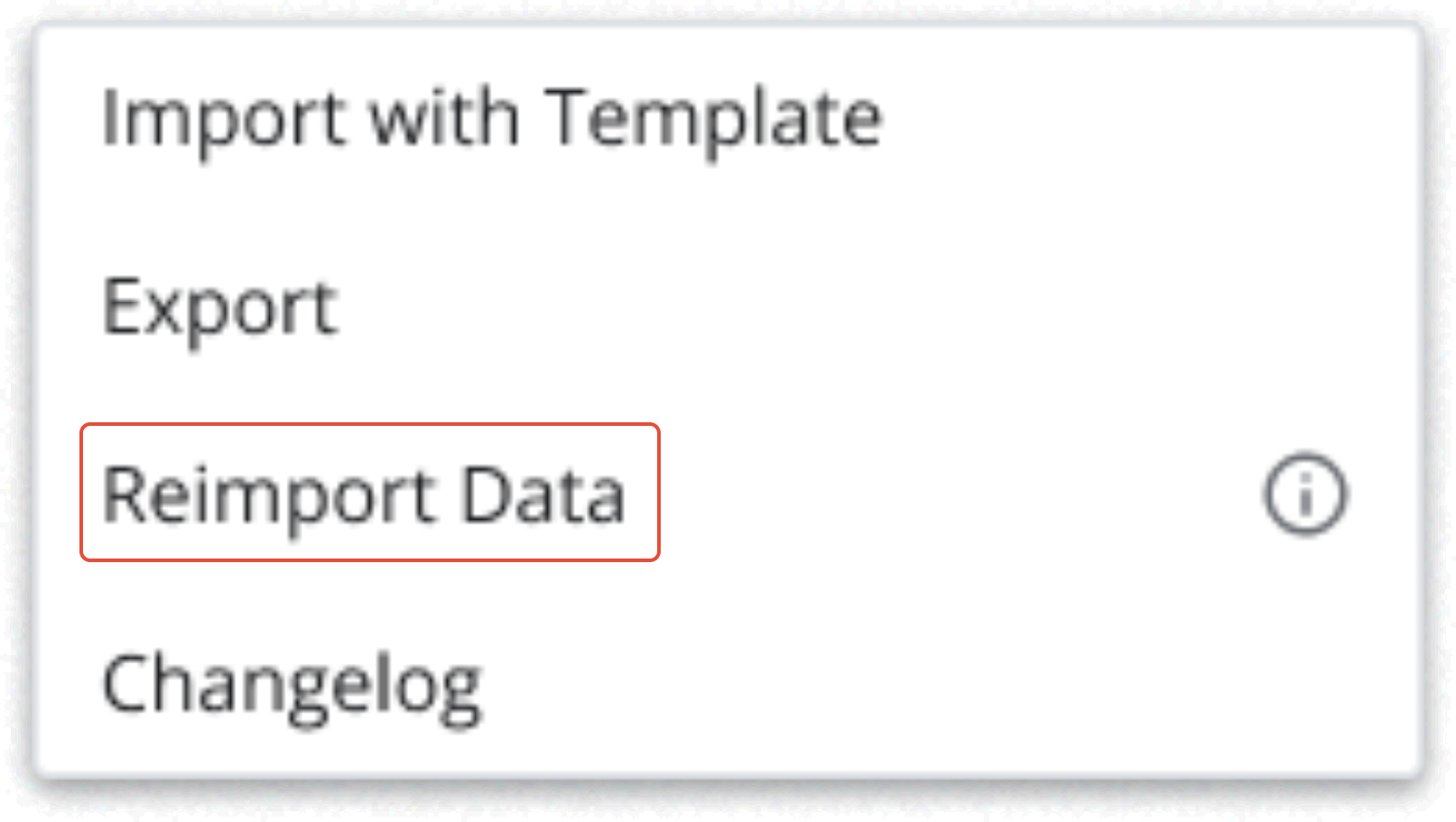
- If the variance clears after re-importing, the issue was a temporary mismatch.
- If the variance remains, continue to Step 2.
Step 2: Identify Where the Variance Is Coming From
An overall Daily Activity Balance Forward Variance means that there is something in the PMS files which did not get entered correctly into Revenue, Non-Payments, or Payments.
1. Note the variance amount.
2. Click on Upload Docs to locate the PMS Reports related to this date. If the reports are not there, or are unreadable, retrieve them from your PMS System, and add to Upload Docs for future reference. Review these reports to identify any discrepancies in each of the sections.
3. Search or use CTRL + F to look for the variance amount.
- If found: identify the category and ensure charge code mapping is correct.
- If not found: proceed to a line-by-line review.
Hint: Occasionally, you'll find an amount that is entered or imported as a positive rather than a negative amount. To easily locate amounts that may have been entered with an incorrect sign, divide your variance by 2, and look for that amount within the PMS Reports. This may help you to identify the incorrect item causing your variance.
Step 3: Review PMS Documents Line by Line
A. Revenue
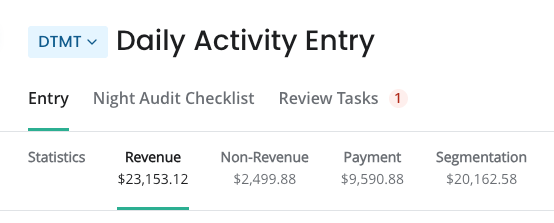
Compare PMS Revenue items to the Daily Activity Entry > Revenue Section and ensure each line is mapped and totals match.
B. Non-Revenue
Repeat the comparison for the Non-Revenue section.
Note: FOSSE Non-Revenue items will be located at the bottom of the Revenue Section, but are still classified as Non-Revenue.
C. Payments
Repeat the comparison for the Payments Section. Review this section carefully as naming differences or new payment types often cause mismatches. This section is also where common mistakes can be made in reference to the sign, such as a refund amount.
Step 4: Add or Correct the PMS Mapping
Once the variance item is identified, update or create the PMS Mapping:
- Map Revenue or Non-Payment items to the correct Charge Code.
- Map Payment items to the correct Payment Method Code.
Re-Import after updating mapping. This step verifies that the Import will now occur each time this item is used in the future.
Step 5: Confirm the Variance Clears
Re-import and confirm the Balance Forward Variance is now $0.00.
Step 6: Review Closing Ledger Amounts for Each Ledger
If the variance remains, but you have verified that all Revenue, Non-Revenue, and Payment items have been entered exactly as the PMS Reports state, the issue may be within your Ledgers.
Review the Closing Balance for each ledger to ensure that it is accurately entered. Update if necessary to reflect the amount of the Closing Ledger Balance.
Opening Balances Incorrect? Opening Balances are pulled from the previous date's Closing Balance. If there is a discrepancy in the Opening Balance, use the date selector to return to the previous day to review the Closing Ledger Balances.
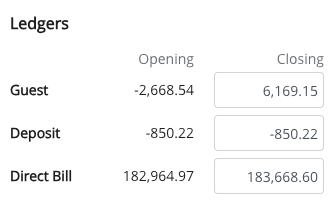
Note: Ledger Balances should never be forced, and should always be entered exactly as shown on the PMS reports to maintain accurate financials.
Step 7: Segmentation Variances
Please see this article on how to handle variances within the Segmentation section: Why is my Segmentation not Matching Room Revenue or Rooms Occupied?

Summary:
- Always start by re-importing if the option is displayed.
- Most variances are caused by unmapped or new PMS codes.
- Use Find to quickly locate the mismatch within your PMS reports if available.
- Verify Revenue, Non-Payments, and Payments.
- Map missing codes and re-import until resolved.
- Ensure Ledgers are entered exactly as shown on the PMS reports.
- Verify the segmentation section matches room revenue and # of rooms occupied
Was this article helpful?
That’s Great!
Thank you for your feedback
Sorry! We couldn't be helpful
Thank you for your feedback
Feedback sent
We appreciate your effort and will try to fix the article